
Storage options: your own Google Drive, Dropbox or S3
Keep a site's backups in your own storage instead of WP Foreman's, or keep an extra copy there.
Updated Oct 11, 2026
By default every backup is kept in WP Foreman storage: included, encrypted, fast to restore. You can also use your own storage for any site, in two ways:
| Keep backups in your storage | Extra copy in your storage | |
|---|---|---|
| Where backups live | Only in your storage. Nothing for that site stays with WP Foreman. | WP Foreman storage, plus a full copy in yours. |
| Restores, browsing, .zip | Work the same, a little slower (they read from your storage) | Fast, from WP Foreman storage. You can also restore from the copy. |
| If your storage account has a problem | Backups and restores for that site stop until it’s fixed | Nothing stops; only the copy waits |
| Space used | Your quota | WP Foreman’s and yours |
Either way, backups are encrypted with the same key before they leave WP Foreman, so your storage only ever holds encrypted files.
1. Connect your storage
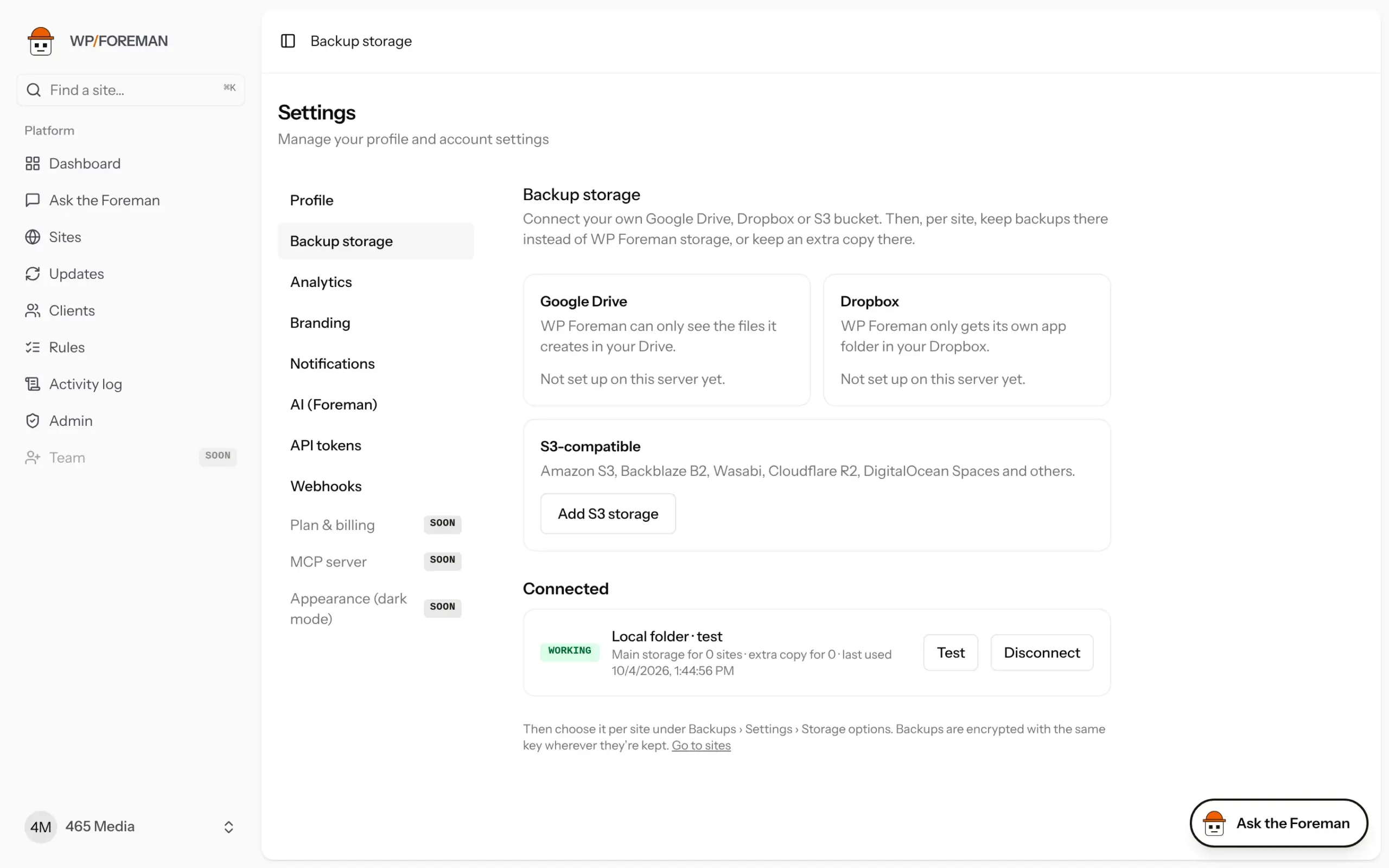
Go to Settings › Backup storage.
- Google Drive: click Connect Google Drive, sign in, approve. WP Foreman can only see the files it creates in your Drive.
- Dropbox: click Connect Dropbox, sign in, approve. WP Foreman only gets its own app folder (Apps › WP Foreman Backups).
- S3-compatible (Amazon S3, Backblaze B2, Wasabi, Cloudflare R2, DigitalOcean Spaces and others): fill in the endpoint, bucket, optional region and folder, access key and secret, then click Test and save. WP Foreman tests a write and only saves it if that works.
Everything goes in a folder called WP Foreman Backups, with one folder per site, grouped by client.
For S3, create a key that can only read and write that one bucket. Don’t use your account’s main keys.
2. Choose per site
Open the site, then Backups › Settings › Storage options.
Keep this site’s backups in
- Pick WP Foreman storage or one of your connected storages.
- Click Save settings and confirm the move.
WP Foreman copies every existing backup across, checks that each one arrived, switches the site over, and only then deletes the old copy from WP Foreman storage. If anything goes wrong, nothing is deleted and the site keeps using where it was. New backups wait while a move runs. Moving back to WP Foreman storage never deletes anything from your storage.
Extra copy
Pick a storage under Extra copy and click Save settings. After every backup, WP Foreman updates the copy. Each backup’s details show Extra copy: Copied with the time. The copy follows the same keep rules: old backups removed from the main storage are removed from the copy too.
Restore from the extra copy
On the Restore tab, a backup that has been copied shows Take the backup from. Choose The extra copy in … and restore as usual. Use this if WP Foreman storage is ever unavailable, or to prove your copy works.
Don’t touch the files
Don’t move, rename, edit or delete files in the WP Foreman Backups folder. The backups only work as a whole. To stop using a storage, change the site’s Storage options first.
If something fails
The problem shows on the backup, in the site log, and on Settings › Backup storage as Problem with the reason. Common causes: the account or bucket is full, access was removed, or the S3 key expired. Fix it and click Test. The next backup catches up on anything the copy missed.
Disconnecting
On Settings › Backup storage, click Disconnect. Sites using it for an extra copy stop copying. You can’t disconnect storage that a site keeps its backups in: move those sites first. Files already in your storage are left there. Disconnecting Google Drive also cancels WP Foreman’s access on your Google account. For Dropbox, remove WP Foreman from your connected apps; for S3, delete the key.
Thanks. If something was missing, tell us what.