
Clients
Group sites by client, keep their contacts and report emails, and put their logo on their reports.
Updated Oct 11, 2026
Open Clients in the main menu to see every client as a card: logo, color, contact, who gets their reports, and their sites.
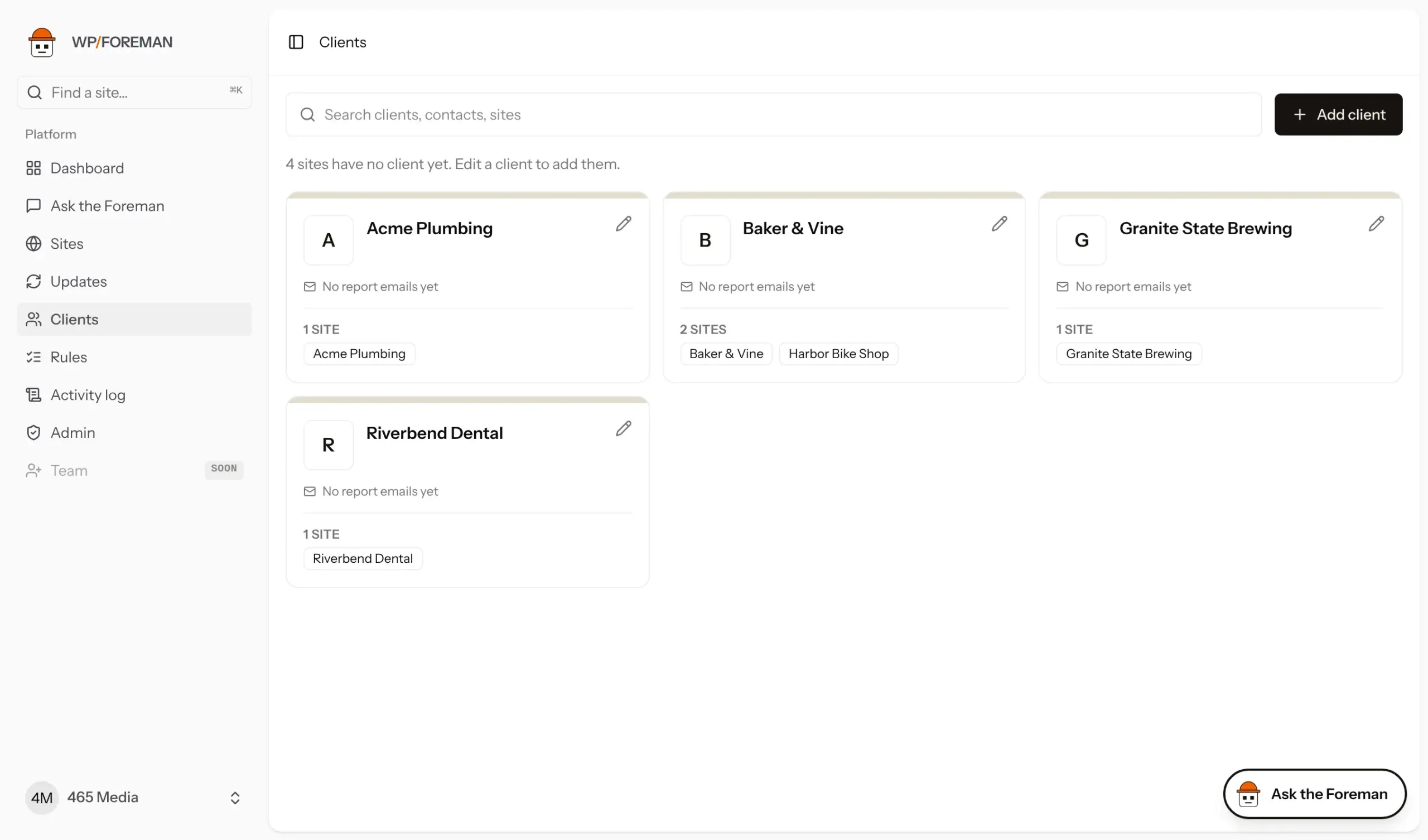
Add or edit a client
- Click Add client, or the pencil on a client’s card.
- Fill in what you have: name, main contact, phone, website, and report emails (who gets their reports, up to 10).
- Add their logo (upload, or Find on their site once they have a website or a site) and their brand color.
- Tick the sites that belong to them. Only sites without a client are listed; move a site from another client in that site’s settings.
- Tick Client portal if everyone in report emails should be able to sign in and see their websites and reports (see Client portal).
- Click Add client (or Save when editing).
How it’s used
- Reports: a client’s reports use the client’s logo when the site doesn’t have its own. Reports use your agency color from Settings › Branding; the client’s color is only used if you haven’t set one. See Client reports.
- Email to client fills in the client’s report emails. Changing them while sending updates the client.
- Notes are private to you and never appear on reports.
Removing a client keeps their sites; they just have no client.
Was this helpful?
Thanks. If something was missing, tell us what.