
Signing in
Use Google or a one-time email link. There are no passwords to remember or leak.
Updated Oct 11, 2026
WP Foreman doesn’t use passwords. You sign in at app.wpforeman.com with your Google account or a link we email you.
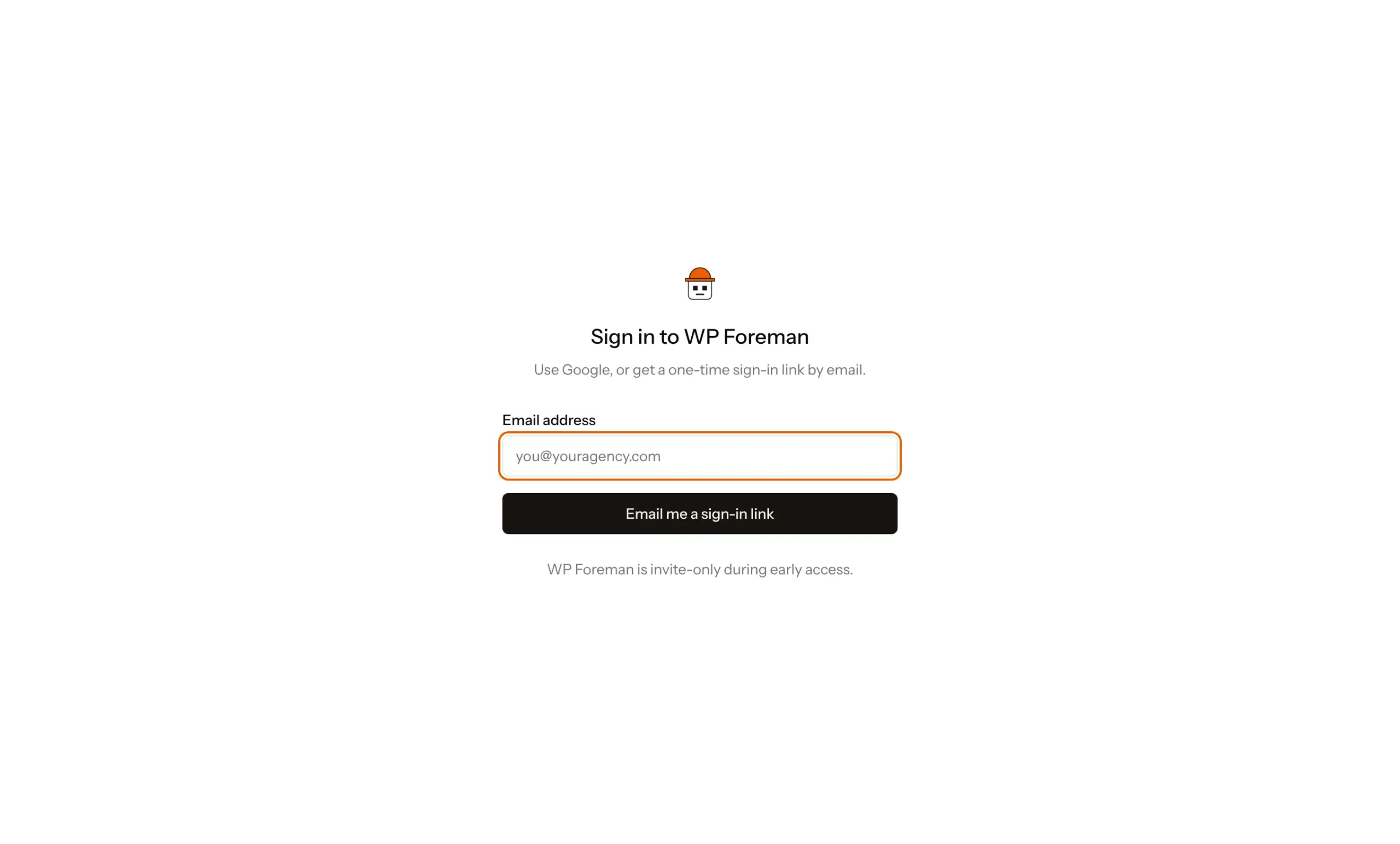
Sign in with an email link
- Enter your email address and click Email me a sign-in link.
- Open the email from WP Foreman and click the link.
- Click Sign in on the page that opens.
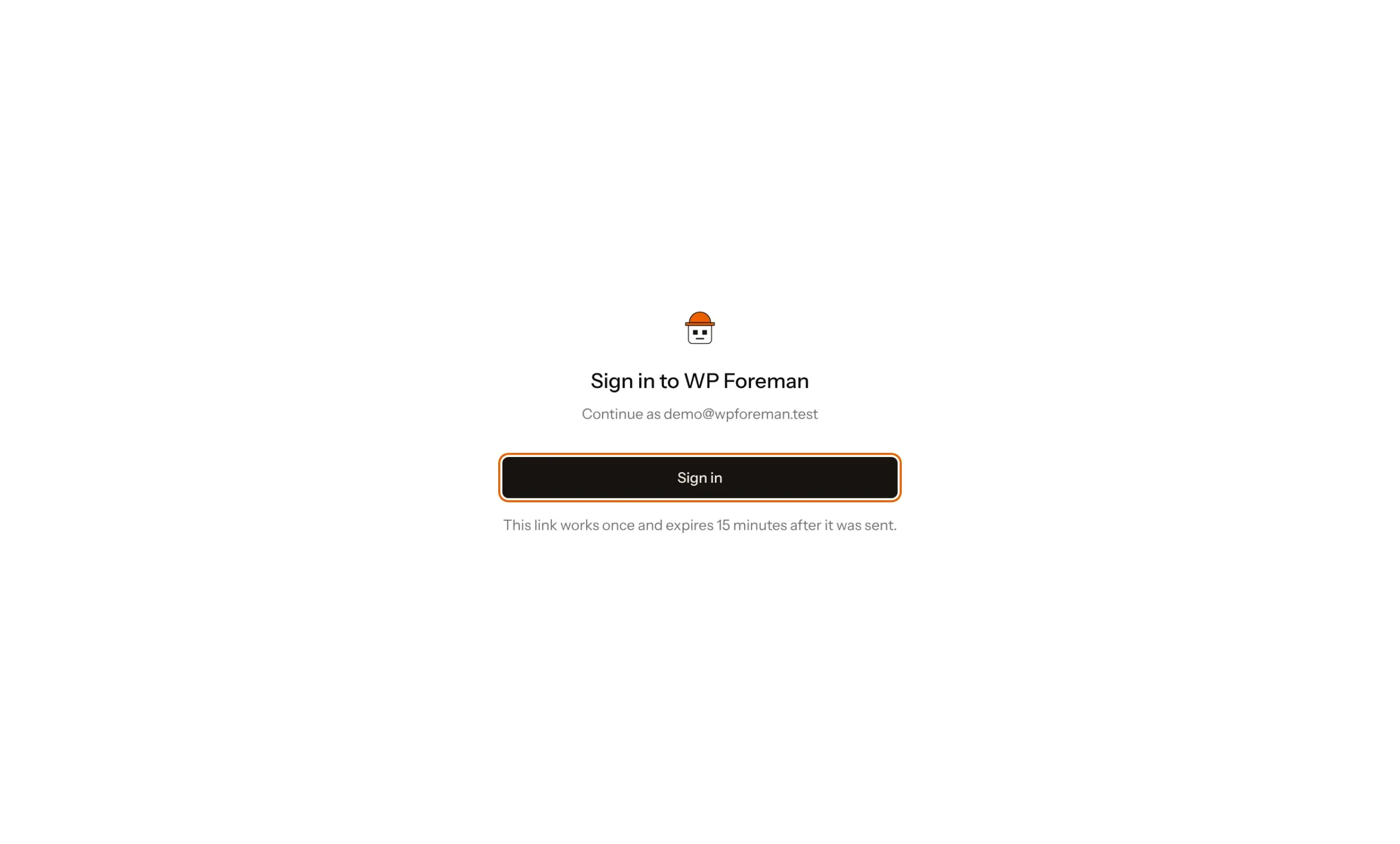
Each link works once and expires 15 minutes after it was sent. If it has expired, ask for a new one.
Why the extra click? Outlook, Hotmail and many company mail systems open links in emails to scan them. Without the confirm page, the scanner would use your link before you could.
Sign in with Google
Click the Google button and pick the Google account that matches the email address on your WP Foreman account.
Trouble signing in
- No email? Check spam and promotions, and give it a minute. Mail comes from
wpforeman.com. Links are only sent to addresses that have an account, so check the spelling, or sign up if you’re new. - “This link has expired or was already used”: request a new link.
- “No WP Foreman account for that Google login yet”: that Google address isn’t on an account. Use the Google account with the email you signed up or were invited with, or sign up.
Was this helpful?
Thanks. If something was missing, tell us what.