
Client reports
Make a plain-English report for any site and any dates, with the site's logo, and send your client a private link or a PDF.
Updated Nov 13, 2026
A report shows a client what you did for their site and how it’s doing, in words they understand. No plugin lists to decode, and no WP Foreman branding: the report shows the site’s logo and your name.
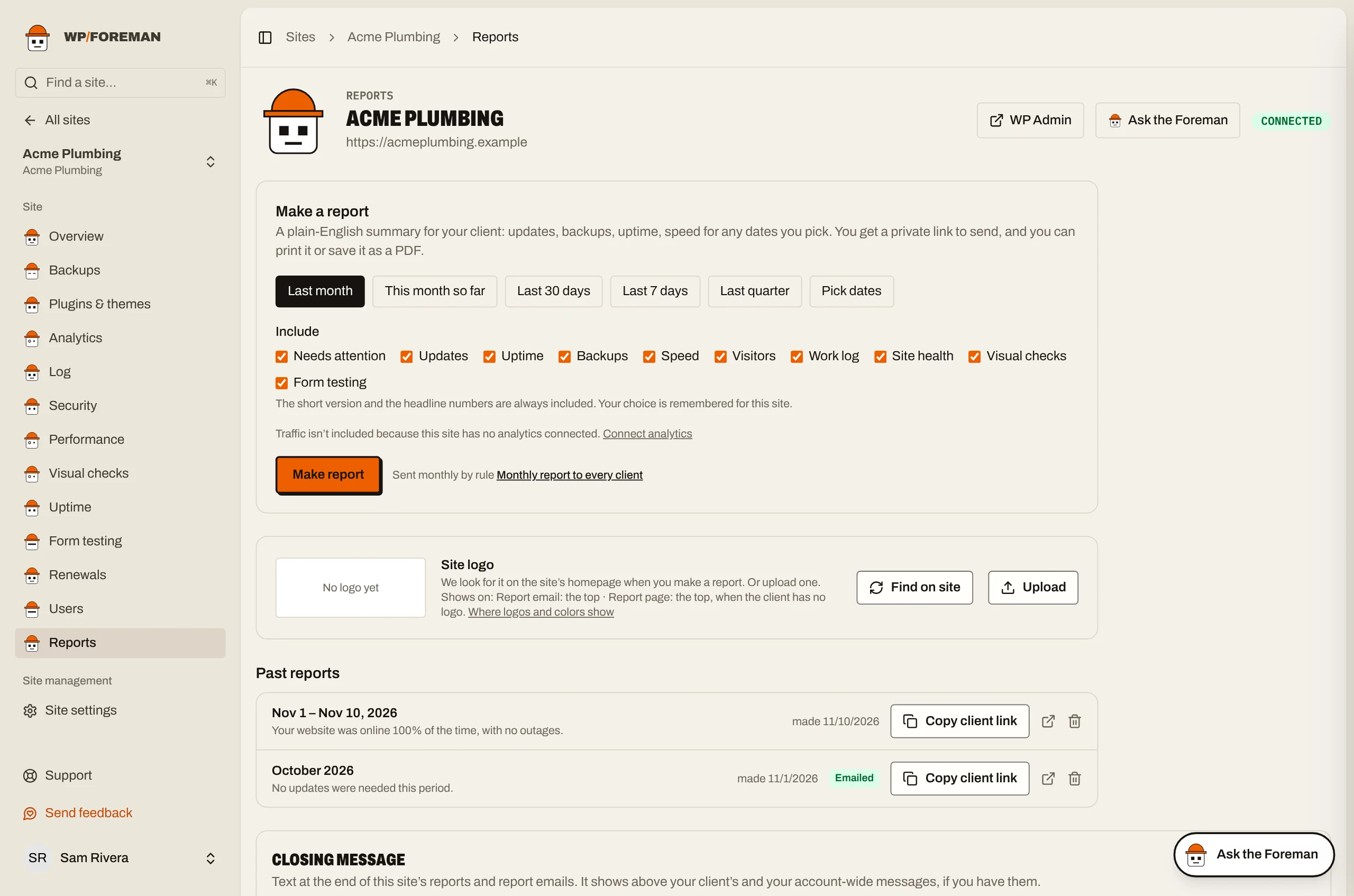
Make one
- Open the site and choose Reports.
- Pick the dates: Last month, This month so far, Last 30 days, Last 7 days, Last quarter, or Pick dates for any range up to about a year.
- Tick the sections to include (see below). Your choice is remembered for the site.
- Click Make report. It takes a few seconds and opens the finished report in a new tab.
From the report: Email to client, Copy client link to send it yourself, Download PDF for a PDF file of the whole report (every section open), the printer icon to print it, or Delete it.
Email it to your client
- Open the report and click Email to client.
- Enter one or more addresses (up to 10, separated by commas) and, if you like, a short message.
- Leave Remember these addresses ticked to fill them in next time for this client.
- Click Send.
The email comes from your agency name, shows the site’s logo, your message, the anniversary (if it’s that month), the short version, anything that needs attention and a View the full report button in your agency color. When the client’s portal is on, it ends with a link to it. Replies go to your reply-to address. The report then shows Emailed with the date and addresses, and the send is recorded in the site’s log.
What’s in it
The report reads top to bottom, from a quick look to the full detail:
- Cover: a band in the client’s color with the client’s logo (see what shows where), the dates, the site’s name, This month in short (a short paragraph written by AI from the report’s own numbers, or three to five plain points if it can’t be written) and the homepage on a computer and a phone.
- Anniversary, in the month a care plan with Client since renews: a cake with one candle per year and a thank-you from your agency. See Celebrate a client’s anniversary.
- Needs attention, when something does.
- This month at a glance: one card each for visitors (with a small trend line), speed (phone and computer gauges), pages checked (a strip of page screenshots, with changed pages outlined), updates (plugin icons), backups, time online (a bar per day) and security (known issues found and fixed). Each card’s link opens its details below.
- The details: a section for each area you ticked. Each one shows a one-line summary and opens with a click, so clients can dig in only where they care to. Open all opens every section, and printing or saving a PDF always includes everything.
- Coming up: updates waiting to be installed, an SSL certificate or domain renewing in the next 60 days, renewals you chose to show the client, and Google’s biggest suggested speed fix. Left out when there’s nothing.
- Every task: the full work log and the site’s vital signs, folded away at the end.
- A sign-off with your agency name, logo and email.
| Section | Shows |
|---|---|
| Needs attention | Updates still waiting, updates that were held back and why, failed backups, a low mobile speed score with Google’s top fix, an SSL certificate or domain expiring within 30 days, known security issues still open, the site being down when the report was made, a form whose latest test failed, or plugins that are no longer maintained (pulled from wordpress.org, or no update in two years or more) and should be replaced. Left out when there’s nothing to say. |
| Updates | Every plugin, theme and WordPress update WP Foreman installed, with its icon, versions and dates, and any that were held back. |
| Uptime | Shown as Online. Percent online, a bar for each day (green, or orange/red on days with downtime), daily response time, and each outage with how long it lasted. See Uptime. |
| Backups | How many were taken, the most recent, and a square for each day showing it was backed up. |
| Speed | Phone and computer PageSpeed scores as gauges, frames of the page loading on a phone (and, when the phone score moved 5 points or more, the start of the period next to the end), each measurement on a green-amber-red scale, with a chart of every test, and Google’s top three suggestions. Also what real visitors experience: Google’s data from Chrome visitors over the last 28 days for page load, how fast the page reacts to taps and clicks, and layout jumps (shown when Google has enough visits), and the page size and number of files it loads (from tests on Oct 27, 2026 on). |
| Visitors | A daily visitors chart with the period before drawn faintly behind it; how people found the site (search engines, typed in or bookmarked, social media, other websites, email, ads); phone, computer and tablet shares; new and returning visitors (Google Analytics only); the top cities; visitors, pages viewed, visits, people who left after one page and time on site, each compared with the same length of time before; top pages and sources; where visits started (landing pages); engaged visits (Google Analytics); and conversions: form sends, calls, purchases and anything else you mark as a key event in Google Analytics (or a goal in Plausible), with each kind compared with the period before. Conversions only show when key events or goals are set up. Parts your analytics tool can’t provide are left out. Needs analytics connected. |
| Work log | Under Every task. Everything that happened on the site in date order: updates, installs, activations and removals (including ones made in WordPress, with who made them), new administrators, restores, failed backups, outages and speed drops. Routine backups and sign-ins are left out. |
| Visual checks | Shown as Every page, checked after every update: the latest screenshot of every watched page marked Looks right or Changed, a before and after for each change spotted (and whether you checked it was expected), and a timeline of each round of checks with what it followed (for example “After updating WooCommerce”). See Visual checks. |
| Form testing | Shown as Forms, tested like a visitor: how many form tests ran and how many went through, and for each form its page, tests, passes, latest result and how quickly the notification email arrived. A form whose latest test failed is also listed under Needs attention. Left out when no form was tested in the period. See Form testing. |
| Site health | Under Every task, as Website health. WordPress and PHP versions, number of plugins, SSL certificate and domain renewal dates. |
Sections you don’t tick are left out completely, including from the client link and the at-a-glance cards. Reports made before October 7, 2026 show in the new layout too, without the parts they don’t have data for (such as the page gallery). Hover the charts to see each day’s numbers.
The AI paragraph is written once, when the report is made, using only the numbers in the report. It’s written for your client, in your voice: anything still to do is described as something you’ll take care of (“2 updates are ready, and we’ll install them soon”), never as something they need to approve, and it never names WP Foreman. It uses your own Anthropic key if you’ve added one in Settings › AI, otherwise WP Foreman’s, and doesn’t count against your Ask the Foreman questions. If it can’t be written, the report simply starts with the points.
A report is a snapshot. Once made, it never changes, even if you rename the site or data comes in later. Make a new one to get fresh numbers.
Logos and colors
The report page shows the client’s logo at the top in the client’s color, and your agency logo and email in the sign-off. Report emails show the site’s logo at the top and a button in your agency color. For every place and every fallback, see Logos and colors: what shows where.
A closing message
Add your own text to the end of reports and report emails: a thank-you, a booking link, news about the website. The editor handles bold, italics, underline, links and lists. There are three levels, and they stack:
- Account-wide, in Settings › Branding, for every report.
- Per client, in the client’s details on the Clients page, for all of that client’s sites.
- Per site, under Closing message on the site’s Reports page.
The site’s message comes first, then the client’s, then the account-wide one. A client can leave out the account-wide message for all its sites, and a site can leave out the client’s or the account-wide message. The site’s Reports page previews exactly how the report will end. Changes apply to reports made from then on.
Which address report emails come from
Choose in Settings › Branding › Report emails: sender and replies:
| Option | Clients see | Setup |
|---|---|---|
| WP Foreman (default) | Your agency name, from WP Foreman’s sending address. | None. |
| Your domain | Your agency name from an address on your domain, like reports@youragency.com. | Add the DNS records shown (usually 3) at your DNS provider, then click Check. The address doesn’t need a mailbox, and the records don’t change how your normal email works. |
| Your mail server | Your agency name from your own address, sent through your own mail server (SMTP). | Enter the server, port, security, username and password. We send you a test email; when it arrives, you’re set. |
Where replies go: the Reply-to box in the same section. It’s also the “write to” address at the end of each report and in the client portal. Leave it blank and replies go to the address reports are sent from (your domain or mail server), or to your profile email when reports are sent from WP Foreman.
- Google Workspace / Gmail: server smtp.gmail.com, port 587, STARTTLS, your full address as the username and an app password (needs 2-step verification on the account).
- Microsoft 365: server smtp.office365.com, port 587, STARTTLS. Your Microsoft 365 admin may need to allow SMTP sign-in for the mailbox.
- SMTP passwords are stored encrypted. If sending fails later (for example after a password change), the report shows the error and the setting shows Not working.
On Cloudflare, set the domain records to DNS only (grey cloud). DNS changes can take a few minutes, occasionally a few hours, before Check shows Working.
The site’s logo
The first time you make a report, the Reporter gets the logo. With WP Foreman plugin 0.10.1 or newer it asks WordPress directly for the logo set in the theme (including Blocksy’s header logo), so firewalls and page builders don’t get in the way. Otherwise, or when no logo is set there, it looks on the homepage: the WordPress custom logo, logos placed by Elementor, Divi, Avada, Beaver Builder and similar, a logo image or SVG in the header, the logo your SEO plugin lists for the business, then the site icon. Big logo files are shrunk to fit. You’ll see it under Site logo on the Reports page.
- Find on site looks again, for example after a rebrand.
- Upload uses your own file instead (PNG, JPG, WebP, GIF or SVG, up to 400 KB). A logo with a transparent or white background looks best.
Reports already made keep the logo they were made with.
Your own report domain
Report links can come from your own domain, like reports.youragency.com, instead of app.wpforeman.com. The account owner or a team member can set it up.
- Go to Settings › Branding › Report domain, type the subdomain you want to use and click Add domain. Use a subdomain you don’t use for anything else; the main domain,
www.andmail.aren’t allowed, so your website and email are never affected. - WP Foreman shows two DNS records: a CNAME pointing your subdomain to
customers.wpforeman.com, and a TXT record that proves you own it. Add both where your domain’s DNS is managed. On Cloudflare, set the CNAME to DNS only (grey cloud). - Click Check now, or just wait: WP Foreman checks every few minutes for a week. When the domain shows Live, the security certificate has been issued; it renews by itself.
Once it’s live, Copy client link, Open and report emails all use your domain, including the logos inside the email. Links you already sent from app.wpforeman.com keep working. Your domain only shows your own reports; everything else on it returns “Not found”, so nobody can reach WP Foreman’s sign-in page through it. Remove the domain any time and new links go back to app.wpforeman.com.
The client link
- Anyone with the link can open the report. No sign-in needed.
- Links are long random codes, can’t be guessed, and are hidden from search engines.
- Clients get a Download PDF button at the top for a PDF file of the whole report, with every section open.
- Delete a report to turn its link off: use the bin next to it under Past reports (handy when you remake one and only want the good one kept), or Delete at the top of the report. It also leaves your client’s portal.
- Deleted one by mistake? Deleted reports are kept for 30 days under Recently deleted, below Past reports on the site’s Reports page. Click Restore and it’s back, with the same client link and back in the client portal. After 30 days it’s gone for good.
Send reports automatically
To send reports automatically, use a rule. The quickest way is on the site’s Reports page:
- Pick the dates you want each report to cover (for example Last month), then click Schedule this report next to Make report.
- The Rules page opens with the rule filled in: on the 1st at 8 AM, last month’s report for this client’s sites (or just this site, if it has no client), emailed to the client’s report emails. Change anything you like, then click Save. Nothing is saved before that.
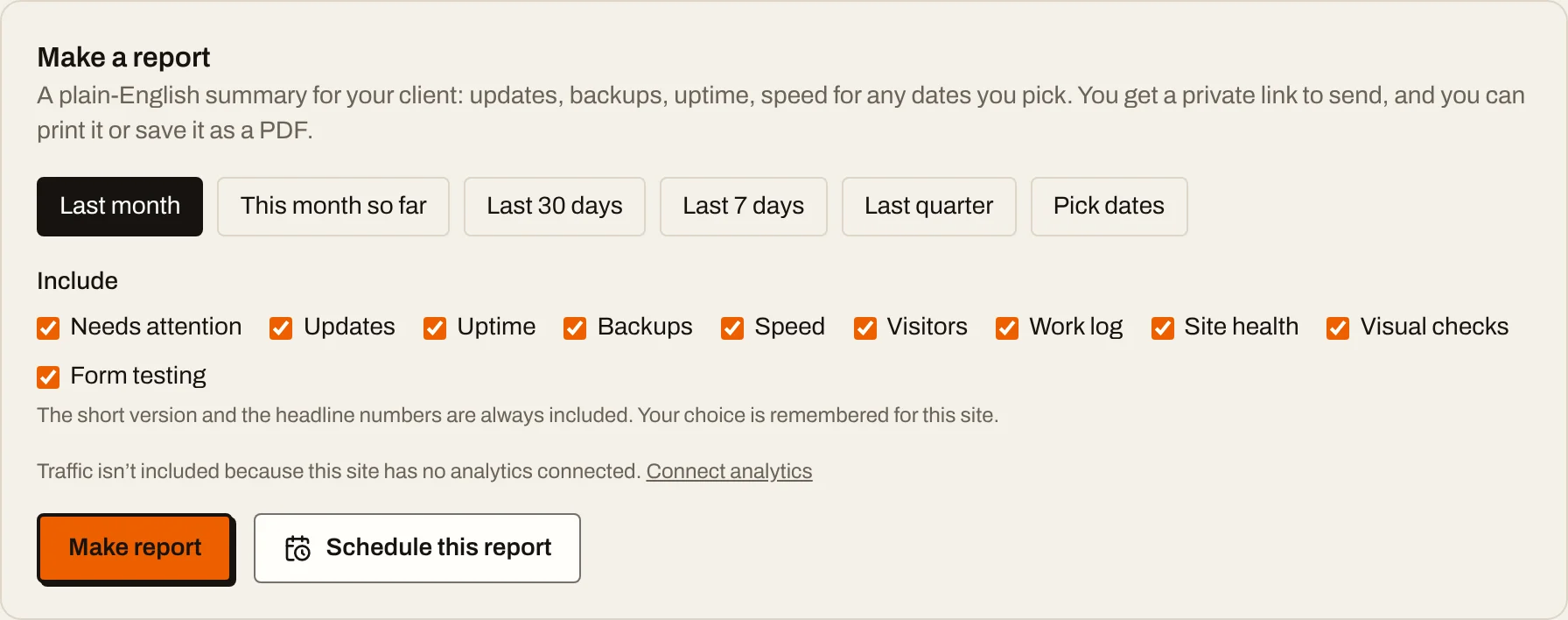
Once a rule sends a site’s reports, the Reports page says so (“Sent monthly by rule …”) with a link to the rule, instead of the button. The Clients page shows the same for each client, with Schedule monthly reports for clients that don’t have a rule yet.
You can also start from the Reports recipes on the Rules page, with the action Make a client report. See Rule recipes.
The PDF
- Every report email comes with the report attached as a PDF (for example Baker & Vine website report, October 2026.pdf), as well as the link. That includes reports sent by a rule.
- It’s the same report as the link, printed on US Letter pages, with every section open and in your client’s colors.
- The first download takes a few seconds while it’s made. After that it opens straight away.
- If the PDF can’t be made at that moment, the email still goes out with the link, and the button offers your browser’s Print › Save as PDF instead.
Ask the Foreman: “Which of my sites had outages last month?”
Thanks. If something was missing, tell us what.