
Choose what gets backed up
Leave out folders like old uploads or video, or tables you don’t need.
Updated Oct 6, 2026
By default everything is backed up. To leave something out, open Backups › Settings › Include / exclude content.
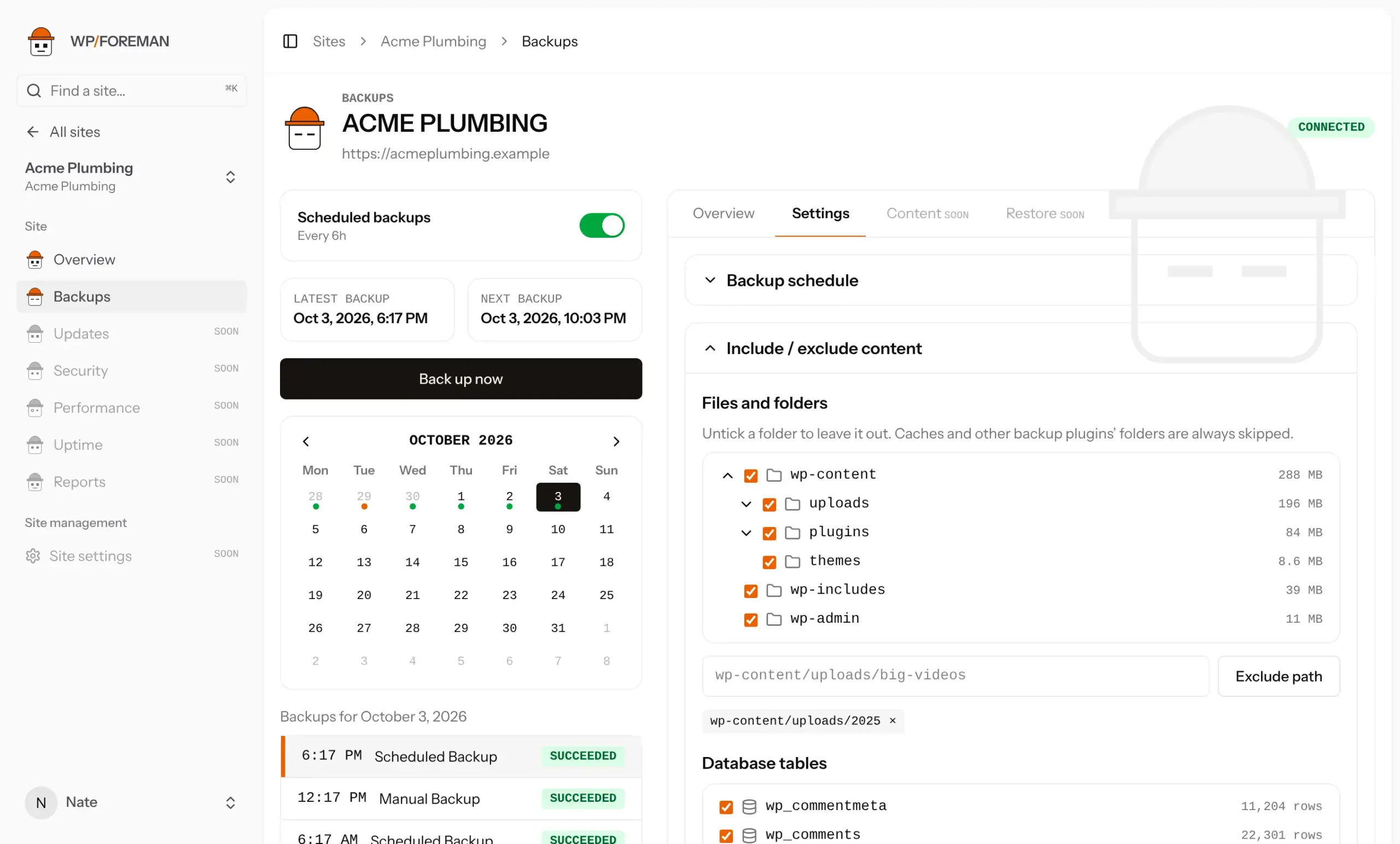
Folders
- The tree shows your site’s folders with their sizes, so the big ones are easy to spot. Untick a folder to leave it and everything in it out.
- For something not in the tree, type its path from the WordPress folder (for example
wp-content/uploads/videos) and click Exclude path. - Excluded paths are listed underneath. Click × to include one again.
The folder list appears after the site’s first backup.
Database tables
Untick any table to leave it out, for example a large log or statistics table you can live without.
Click Save settings. Changes apply from the next backup. Earlier backups are not changed.
Anything you leave out can’t be restored. Don’t exclude wp-content/uploads or core tables like wp_posts and wp_options unless you have another copy.
Was this helpful?
Thanks. If something was missing, tell us what.