
Client portal
Give clients a private, branded dashboard: how their websites are doing, every report you've made and the renewals you choose to show.
Updated Oct 11, 2026
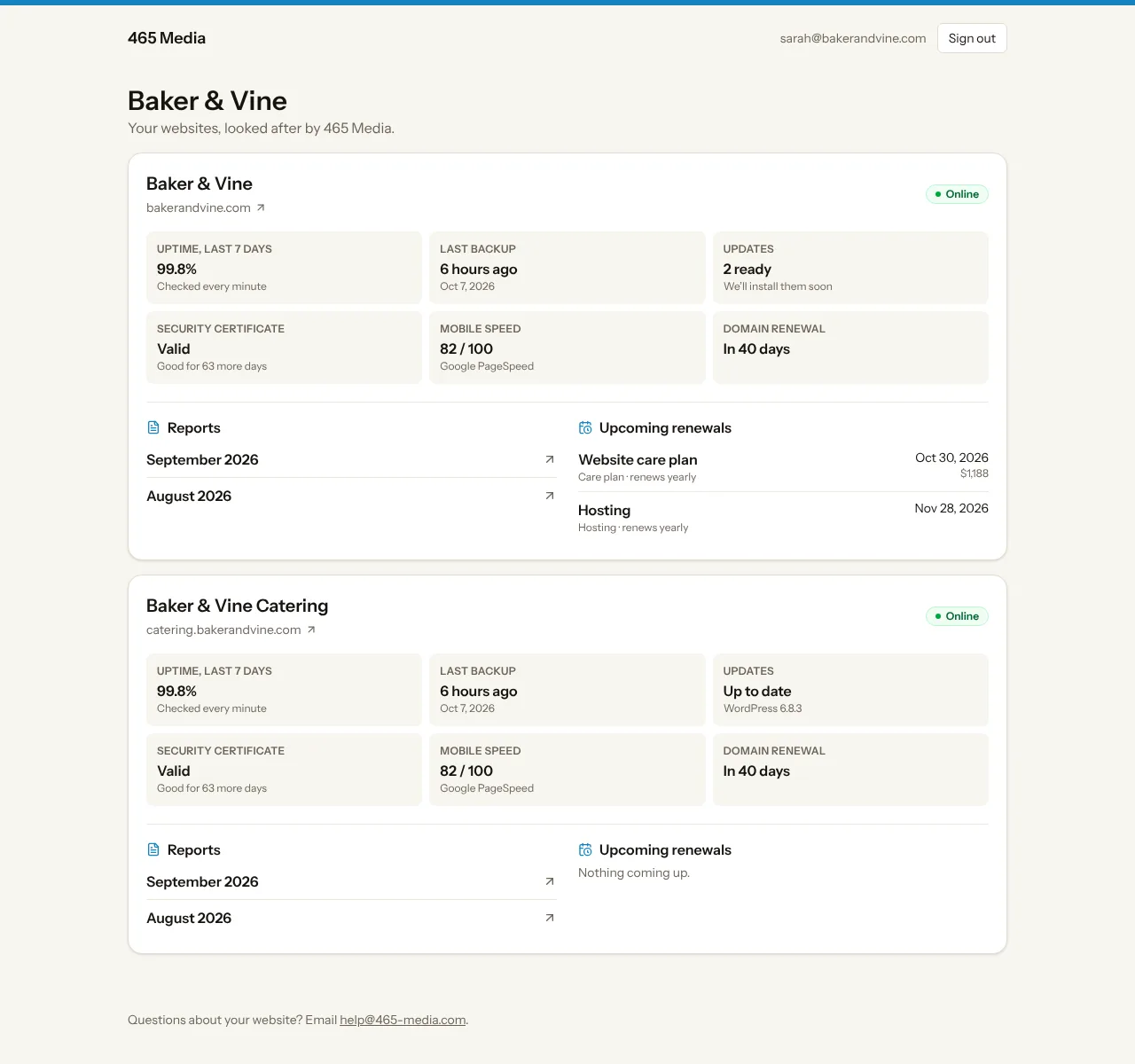
The client portal is a read-only dashboard for your clients. It carries your agency name, logo and color, with no WP Foreman branding. Clients sign in with a link sent to their email, so there are no passwords to set up or forget.
Turn it on for a client
- Go to Clients and click the pencil on a client.
- Make sure Report emails lists everyone who should have access.
- Tick Client portal and save.
- Click Copy link on the client’s card and send it to them. Each client has their own address, like
…/portal/baker-and-vine.
You don’t have to send the link yourself: while the portal is on, every report email ends with a Your website dashboard box linking to it, and the report page has an All your reports and websites button. Turn the portal off and new report emails leave the box out, and the button disappears from every report page, even ones you already sent.
Everyone in Report emails can sign in. To take someone’s access away, remove their email. To close the portal for the whole client, untick Client portal. Either way, anyone who’s signed in is signed out on their next click.
Who sees what
| Who | What they get |
|---|---|
| You and your team | Sign in at …/portal with your WP Foreman email (no need to be on any list) and you get All clients: a card for every client, with their websites, anything down, updates ready and the latest report. Click one to see their portal exactly as they do. Clients with the portal off still show (marked Portal off) so you can check it before turning it on. |
| A client contact | Only the clients whose Report emails list them, and only while the portal is on. With one client, they go straight to it. Someone listed on two clients (say they own two businesses) picks between just those two. |
What clients see
| Part | What it shows |
|---|---|
| Each website’s card | Online or down right now, uptime for the last 7 days, the last backup, whether updates are waiting (“2 ready, we’ll install them soon”) or everything’s up to date, the security certificate, mobile speed score, and the domain renewal when it’s within 60 days. Anything you’ve switched off in a site’s Settings › Features is left out. |
| Reports (in each card) | Every report you’ve made for that website, newest first: the latest 3, with Show all for the rest. Delete a report on the site’s Reports page to remove it. |
| Upcoming renewals (in each card) | That website’s renewals, but only renewals you ticked Show on client reports when it’s coming up. The cost only shows when you also ticked Include the cost. |
Clients can’t change anything. They don’t see plugin lists, the site log, other clients or anything else in WP Foreman.
Signing in
The client goes to the portal link, types their email and clicks Email me a sign-in link. The email comes from your agency name, and from your own address when you’ve set up Your domain in Settings › Branding. The link works once and lasts 30 minutes. Clicking it shows a Sign in button; that extra click stops email security scanners from using up the link.
If someone who isn’t on the list asks for a link, nothing is sent, and the page says the same thing either way, so nobody can test which emails have access.
On your own domain
With a report domain set up, the portal lives there too, like reports.youragency.com/portal, and sign-in emails link to it. It only knows your own clients. Without one, the portal is at app.wpforeman.com/portal, still with your branding after sign-in.
Thanks. If something was missing, tell us what.