
Backup schedule
From monthly to every hour, at the time you choose, in your timezone.
Updated Oct 11, 2026
Every connected site is backed up daily by default. Change it on the site’s Backups › Settings tab.
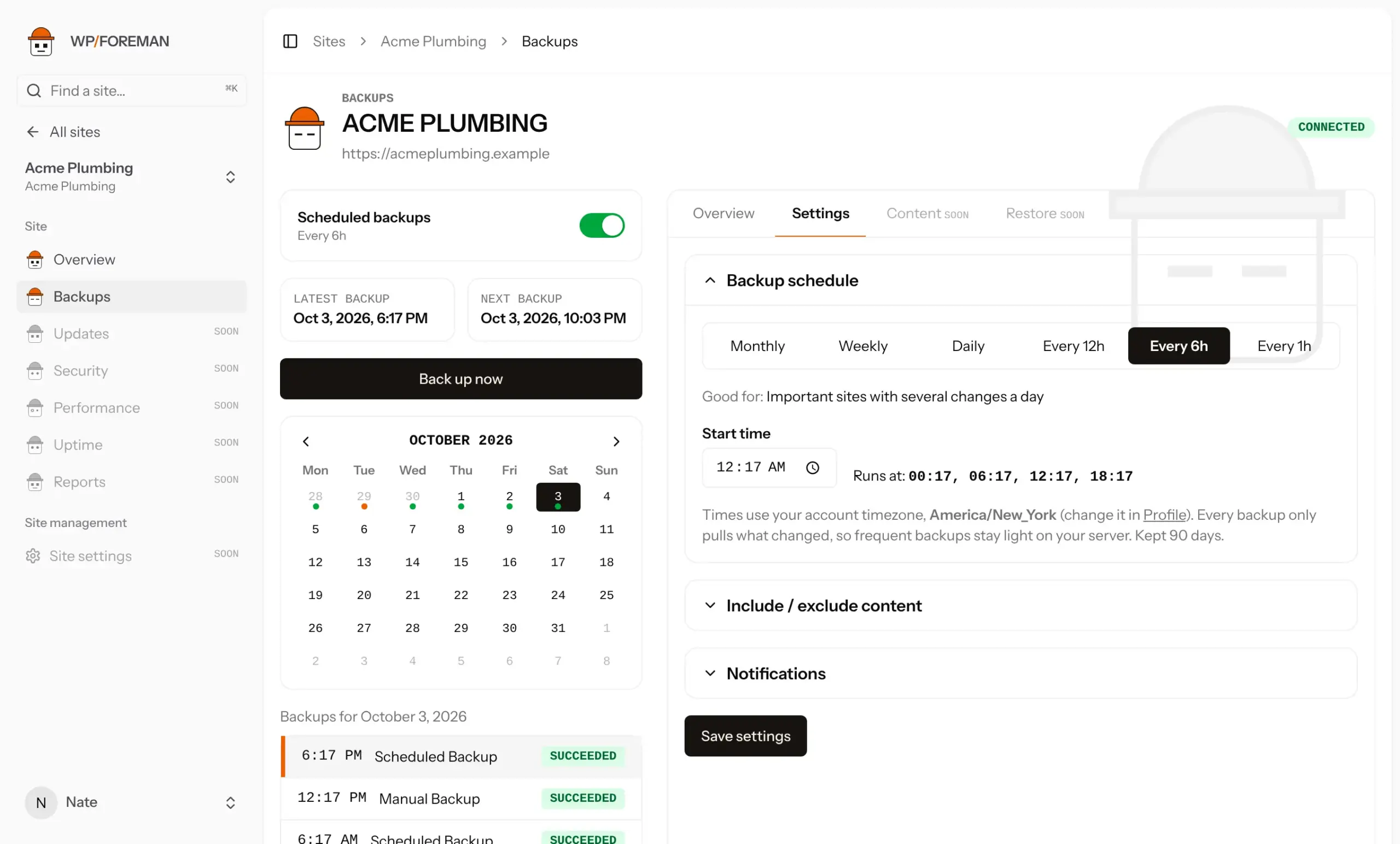
Pick a frequency
| Frequency | Good for |
|---|---|
| Monthly | Sites that almost never change |
| Weekly | Brochure sites with occasional edits |
| Daily | Most business sites (default) |
| Every 12h | Sites updated during the day |
| Every 6h | Important sites with several changes a day |
| Every 1h | Stores, membership and form-heavy sites |
Because each backup only collects what changed, frequent backups stay light on your server.
Set the start time
Pick a Start time. For weekly and monthly, also pick the day. For 12h, 6h and hourly, backups run at fixed times through the day starting from it. For example, every 6 hours from 00:17 runs at 00:17, 06:17, 12:17 and 18:17. The settings show the exact times before you save.
Times are in your account timezone. Click Save settings when you’re done; Next backup updates right away.
Turn scheduled backups off
Use the switch at the top of the Backups page. You can still run backups by hand, and existing backups are kept.
The calendar
Days with a backup get a dot: green when all succeeded, orange when one failed, red when all failed. Click a day to see its backups, and click a backup to see its details.
Thanks. If something was missing, tell us what.