
The Foreman: run your sites by chat
Ask about your sites in plain English and hand out jobs. Anything that changes a site waits for your OK.
Updated Oct 11, 2026
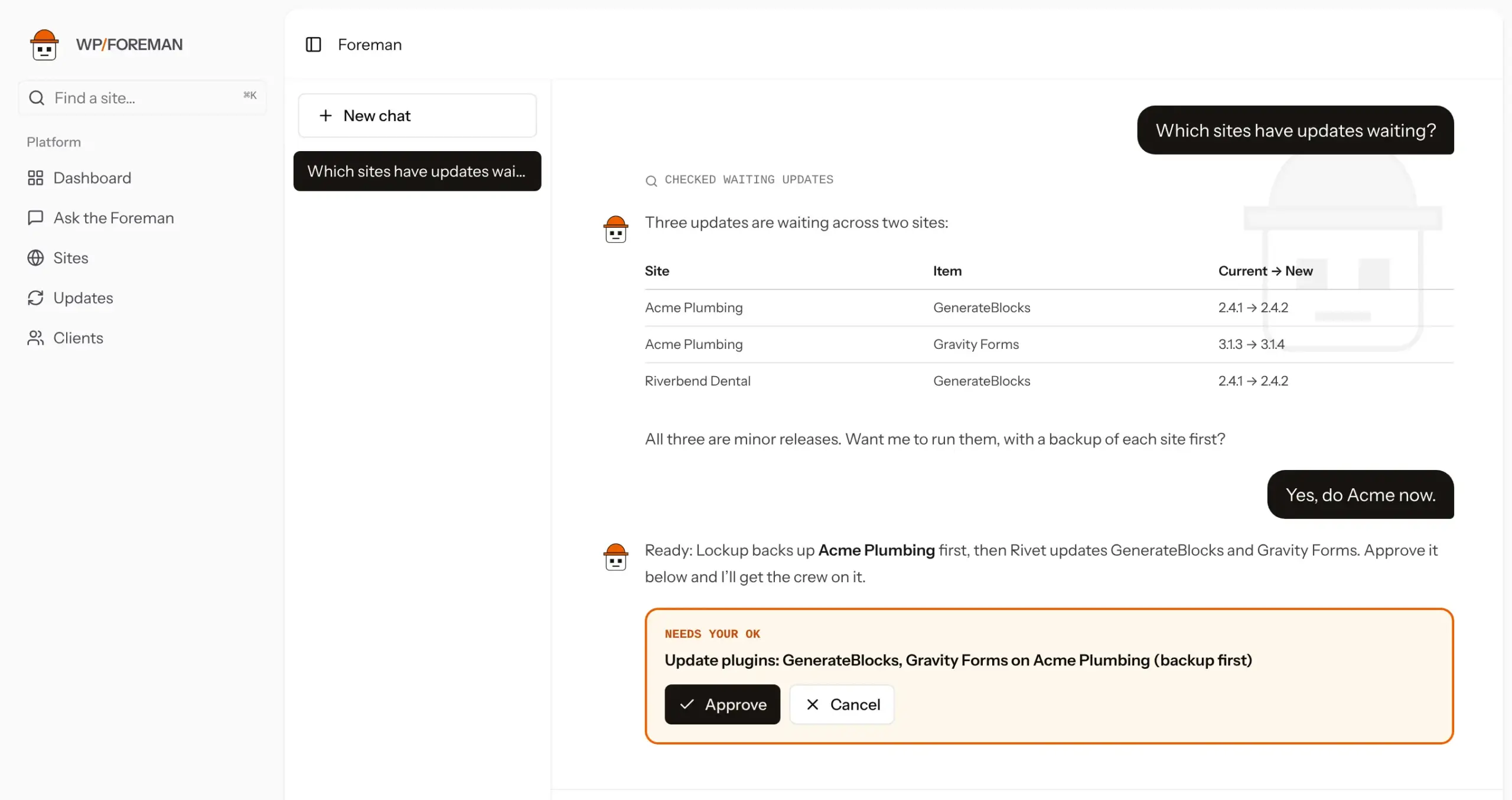
The Foreman is the boss of the crew: a chat inside WP Foreman that looks up your sites and hands out jobs. Open Ask the Foreman in the sidebar, or click Ask the Foreman on any site’s page to start a chat about that site.
Ask from any page
Click Ask the Foreman in the bottom-right corner of any page, or press ⌘J (Ctrl+J on Windows). A chat slides out on the right.
- It knows where you are. On a site’s Performance page, “why is mobile so slow?” is about that site’s speed test; on the Dashboard it’s about all your sites.
- Chats started on a site page are about that site, like starting one from the site’s menu.
- It’s the same Foreman and the same history. Pick an earlier chat from the title at the top, start a new one with +, or click the expand icon to carry on in the full Foreman page.
- It stays open as you move between pages, and approval cards work right there.
Things to ask
Which sites have plugin updates waiting?
Did any backups fail this week?
Which sites run Gravity Forms older than 3.0?
When was Riverbend Dental last backed up, and how big is it?
Back up every Acme Plumbing site now.
Update Yoast SEO on all client sites, backing up first.
Switch Shop to backups every 6 hours starting at 00:15.
How do I move a site to a new host?
It asks before it changes anything
When you ask for a backup, update, install, delete, restore, clone or settings change, the Foreman doesn’t do it. It shows an approval card saying exactly what will happen. Click Approve to start it, or Cancel. Restores and clones also ask you to type the site’s domain, the same as on the Backups page.
Approved jobs run the same way as from the app, with the same safety backups and limits, and show in each site’s Recent work and on the Backups page.
What it can see
- Your sites, clients, plugins, themes, versions, backups, restores, waiting updates, site notes and the site log, plus traffic, uptime, speed, known vulnerabilities and renewals. It looks them up live each time, so answers are current.
- This help center, which it treats as the source of truth: it checks here before explaining a feature, a failure or an error message, and links the article.
- Nothing from other WP Foreman accounts.
What it answers
The built-in Foreman sticks to WP Foreman, your sites and general WordPress upkeep: plugins, themes, speed, security, hosting, DNS and SSL, email delivery and backups. Off-topic questions get a polite one-liner. If you want a general assistant too, use your own Anthropic key.
Limits
- The built-in Foreman allows up to 100 messages a day per person. If you reach it, the chat says so and it resets the next day.
- Each account has a monthly allowance on the built-in Foreman, set by your plan and shared by your team. A bar under the chat box (Monthly allowance, or Beta allowance for beta testers) shows how much is used and when it resets on the 1st. Unused allowance doesn’t carry over. Add your own Anthropic key for unlimited use.
- The built-in Foreman also has an overall monthly budget. If it’s ever reached, the chat says so and it’s back on the 1st.
- Very large questions (every plugin on every site) may be trimmed; ask for something narrower if it says so.
- Chats are saved so you can scroll back. Delete one from the list on the left.
Thanks. If something was missing, tell us what.