
Visual checks (screenshots)
The Inspector screenshots your key pages on desktop and mobile and compares each with last time, so you spot a broken layout before your client does.
Updated Oct 6, 2026
A plugin update can quietly break a page: a missing menu, a stretched hero, a form that vanished. Visual checks catch that. The Inspector opens your key pages in a real browser, takes full-page screenshots on a desktop and a phone, and compares each one with the last screenshot of the same page. Open a site and choose Visual checks.
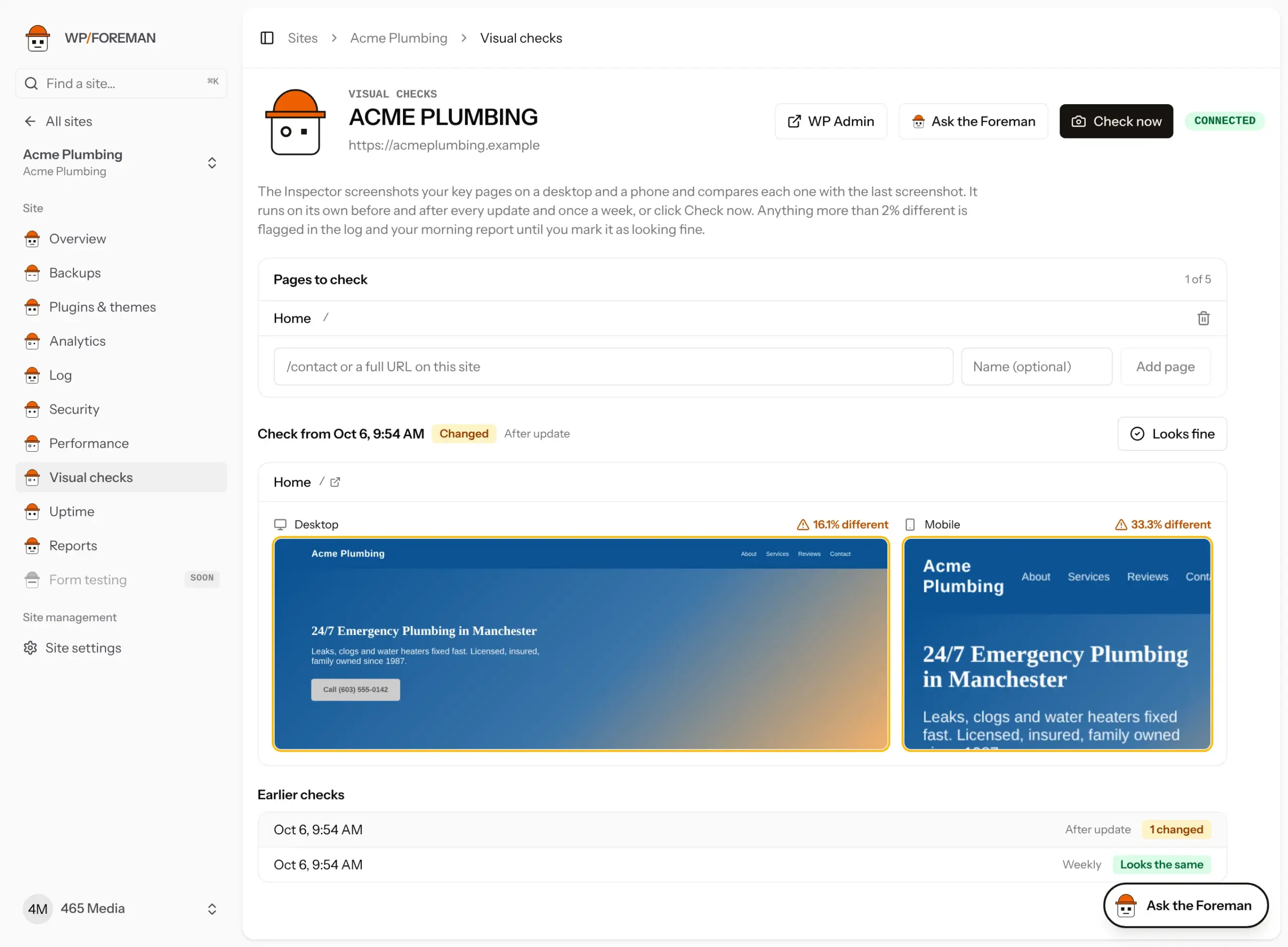
Pick the pages
With nothing set up, the Inspector checks the homepage. Add up to five pages (type /contact or paste a full address on the site), for example the homepage, a key landing page, the shop or a form. Remove a page with the bin icon.
When checks run
- Around every update. Right before WP Foreman updates a plugin, theme or WordPress, it takes fresh “before” screenshots (unless it took some in the last 30 minutes). A minute after the update it takes the “after” screenshots and compares. Several updates in a row share one after-check.
- Once a week, early in the morning, to catch problems that weren’t caused by an update.
- Whenever you click Check now. Screenshots take a minute or two; refresh to see them.
Reading the results
The first check of a page is just a screenshot. After that, each screenshot shows how much of it changed since the one before:
- Green: under 2% different. Normal noise (a rotating banner, a new blog post).
- Amber: 2% or more different. Worth a look.
Click a screenshot to compare: Before, After, and Changes in red, which paints every changed area red so you can see what moved at a glance.
When something looks different
You’ll hear about it until someone looks:
- It’s listed under Needs you in your morning report, and the Inspector mentions it.
- The site’s Overview shows Looks different: review next to the homepage screenshot.
- The site’s Log records which pages changed, and whether it was after updates.
- Rules can react to A visual check finds pages that look different, for example to email you. Webhook
visual.changed.
If the change is fine (new content, a planned redesign), click Looks fine on the check. The next check compares against the new screenshots either way.
On client reports and the Overview
The latest homepage screenshots sit at the top of each site’s Overview, so you always know which site you’re on. Client reports have a Visual checks section: how many times the pages were checked (and how many right after updates), with the homepage on a computer and a phone, plus a line in the short version.
How long screenshots are kept
90 days. The newest screenshot of each page is always kept, because it’s the “before” for the next check.
Where else it shows up
- API:
GET /sites/{id}/visualandPOST /sites/{id}/visual/check. See API: sites.
Pages are loaded like a visitor would see them, with animations switched off so the same page screenshots the same way twice. Pages behind a login aren’t checked. Things that change on every visit (sliders, “latest posts”, ads) will show up as small differences.
Thanks. If something was missing, tell us what.