
Manage plugins and themes on a site
Install, activate, deactivate, update and delete plugins and themes, and update WordPress, from one screen.
Updated Oct 11, 2026
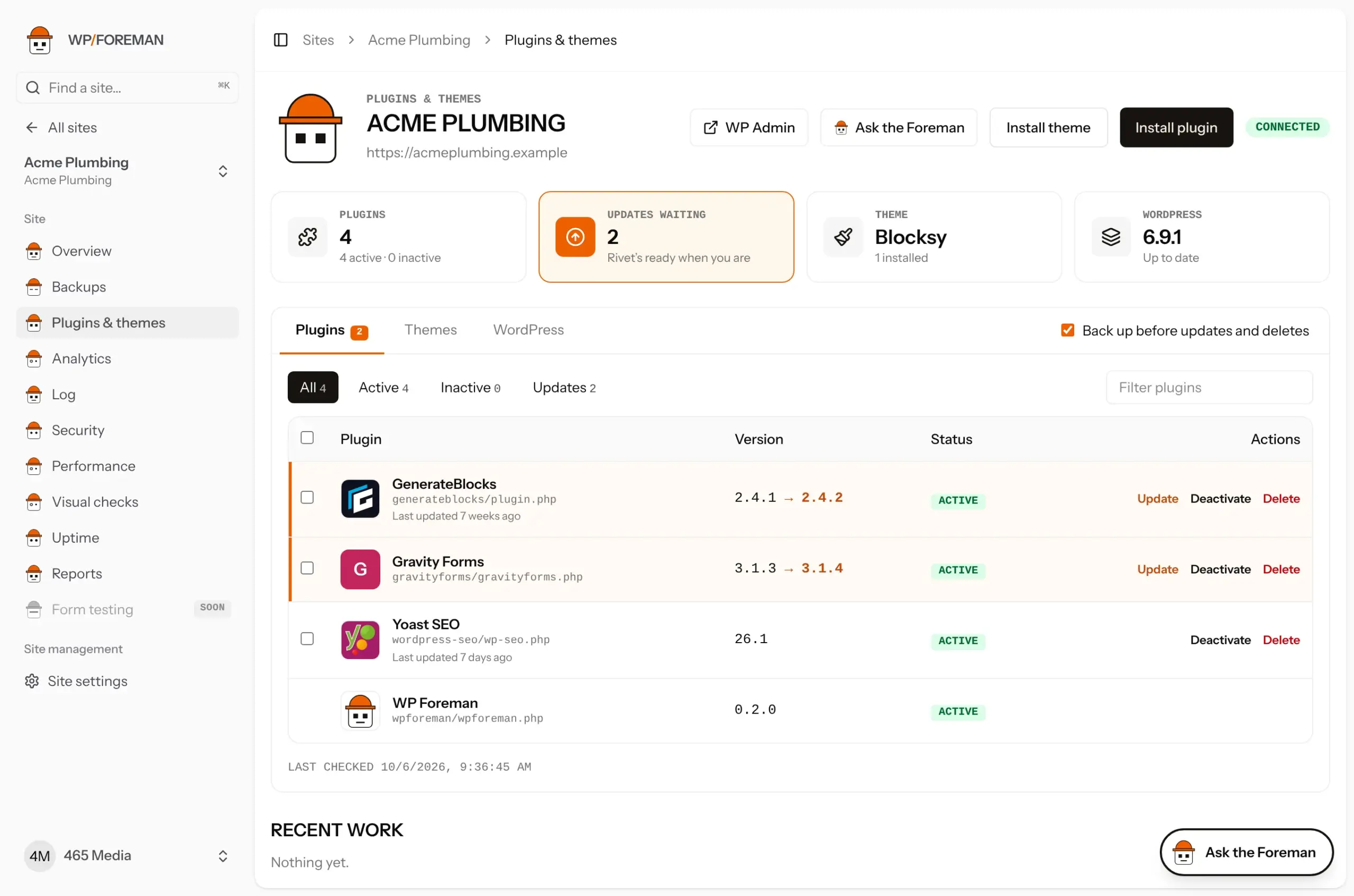
Open a site and click Plugins & themes in the sidebar. Rivet, the Updater, handles everything on this page.
What you can do
| Action | How |
|---|---|
| Update | Click Update on a row, or tick several and use Update in the bar that appears. |
| Activate / deactivate | Click it on the row, or in bulk. Happens straight away. |
| Delete | Click Delete, then confirm in the box that opens, which lists exactly what will be removed. Plugins are deactivated first. |
| Install | Click Install plugin or Install theme (see Install plugins and themes). |
| Update WordPress | Open the WordPress tab and click Update to …. |
At a glance
The four tiles at the top show how many plugins are installed (and how many are active), how many updates are waiting across plugins, themes and WordPress, the active theme, and the WordPress version. The updates tile turns orange when updates are waiting. If any update can’t be downloaded (usually a missing or expired license), the WordPress tile is replaced by an orange Can’t download tile. Click a tile to jump to its tab.
Plugins show their icon from wordpress.org, and themes show as cards with their screenshot. Premium and custom ones that aren’t on wordpress.org get a colored letter instead. Rows with an update waiting are tinted orange so they stand out.
Old and pulled plugins
For anything that’s on wordpress.org, each row shows when it was last updated there. The date turns amber after a year without an update. Two badges flag the ones worth replacing:
| Badge | What it means |
|---|---|
| Abandoned? (amber) | No update on wordpress.org for two years or more. It may not be maintained, may not be tested with current WordPress, and won’t get security fixes. |
| Pulled from wordpress.org (red) | wordpress.org closed it, sometimes for a security issue, sometimes because the author asked. It won’t get updates from there. Hover the badge for the date and reason. |
When something is flagged, a note above the list names it, and the Needs a look filter shows only those. Premium and custom plugins that aren’t on wordpress.org don’t get a date or badge, because there’s nothing to check them against.
You’ll also see them across all your sites: under Worth replacing on the Updates page, in the morning report (pulled plugins under Needs you, old ones under Good to know), and in client reports under Needs attention.
A flag isn’t an emergency, and some old plugins still work fine. But an unmaintained plugin is one of the most common ways WordPress sites get hacked, so it’s worth planning a replacement. Ask the Foreman for alternatives.
Use the filters (Active, Inactive, Updates) and the search box to find things on big sites. Orange numbers on the tabs show how many updates are waiting.
Back up first
Back up before updates and deletes is on by default. Lockup takes a backup of the site before the change; if the backup fails, nothing is changed. If an update breaks something, restore the pre-update backup from the Backups page.
Several changes in a row
You don’t have to wait for one change to finish before starting the next. If you click Delete or Update on a few rows one after another, each one lines up behind the one before and runs in order. They share one backup instead of taking a backup per click, and a backup taken in the last 15 minutes covers the next change too. If that shared backup fails, nothing in the line is changed.
Changes can’t start while a restore or a separate backup is running on the site; you’ll see a message saying so. Try again once it finishes.
Activating and deactivating don’t need a backup: they’re instant and easy to undo.
Recent work
Every change is logged under Recent work with who did it, when, and versions before and after, for example Yoast SEO 26.1 → 26.2. It also feeds the work log in client reports.
Things WP Foreman won’t do
- Deactivate or delete the WP Foreman plugin itself (that would cut the connection).
- Delete the active theme or its parent theme.
If an update fails
- “WordPress can’t write its own files”: the server asks for FTP details when installing. Ask the host to allow direct file access, or add
define( 'FS_METHOD', 'direct' );towp-config.php. - “Couldn’t write the new files on the server” (Could not copy file): WordPress downloaded the update but wasn’t allowed to replace the files, so it kept the current version. Some managed hosts only let signed-in wp-admin requests change plugin and theme files. With WP Foreman plugin 0.7.6 or newer, WP Foreman notices this and sends updates, installs, removals and restores through wp-admin automatically, the same way WordPress’s own Update button works. On WP Engine that isn’t enough yet: their support needs to add a rule for WP Foreman once per account. See Websites on WP Engine for the copy-paste request. If a site is on an older plugin, update the WP Foreman plugin there once by hand (download it with the Download plugin link at the bottom of the site’s Overview, then wp-admin › Plugins › Add New › Upload, choosing “Replace current with uploaded”). If it still fails on a host that isn’t WP Engine, the web server can’t write to
wp-contentat all (file ownership or a full disk), and that one is for the host. - “Already up to date” isn’t a failure: the site already had that version (it was updated some other way since WP Foreman last looked), so there was nothing to do.
- Premium plugins only update when WordPress has a download link for them, the same as when you update them in wp-admin. With plugin 0.7.0 or newer, updates the site has no download link for are marked Can’t download on the Updates page and the site’s Plugins page, so you know before you try. For most premium plugins (ACF PRO, Gravity Forms, WP Rocket) that means the license key is missing or expired; others use an account connection in their own settings instead. Fix it in wp-admin, then refresh the site.
- Rank Math SEO PRO holds its update back while Rank Math SEO (the free plugin) has one waiting, and only releases it once the free one is updated. WP Foreman shows it as “after Rank Math SEO”. Update both together and WP Foreman updates the free one first, then PRO. Updating PRO on its own while the free one is still waiting stops with a message telling you so.
Needs WP Foreman plugin 0.4.0 or newer on the site.
Thanks. If something was missing, tell us what.