
Show your hands-on work in client reports
Log content edits, SEO, design fixes and support calls, with time spent and screenshots, so clients see them in their report.
Updated Oct 31, 2026
Much of the work you do on a client’s site doesn’t show up in a scan: content edits, SEO, design fixes, a support call. Log it in WP Foreman and it goes in the site’s log and in the client’s next report, with the total time.
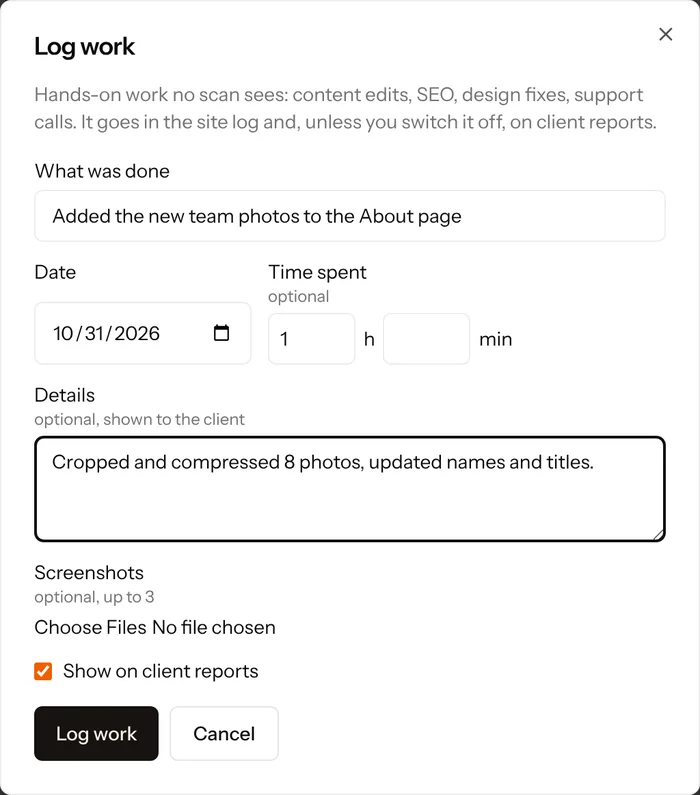
Log work on a site
- Open the site and click Log work at the top of its Overview.
- Write what was done, the way you’d tell the client (“Updated the opening hours on the Contact page”).
- Check the date (today by default), and add the time spent if you track it.
- Add details and up to 3 screenshots if they help. Both are shown to the client.
- Leave Show on client reports ticked, or untick it to keep the entry private. Click Log work.
The same job on many sites
On the Sites page, click Log work, pick the sites (all, one client’s, or tick them one by one), and fill in the form once. Each site gets its own entry, for jobs like “Updated the footer copyright on 12 sites”.
Ask the Foreman
Log 30 minutes of SEO work on Acme today: rewrote the service page titles.
The Foreman saves the entry straight away (it only records work, it doesn’t change the site) and tells you what it saved.
In the client report
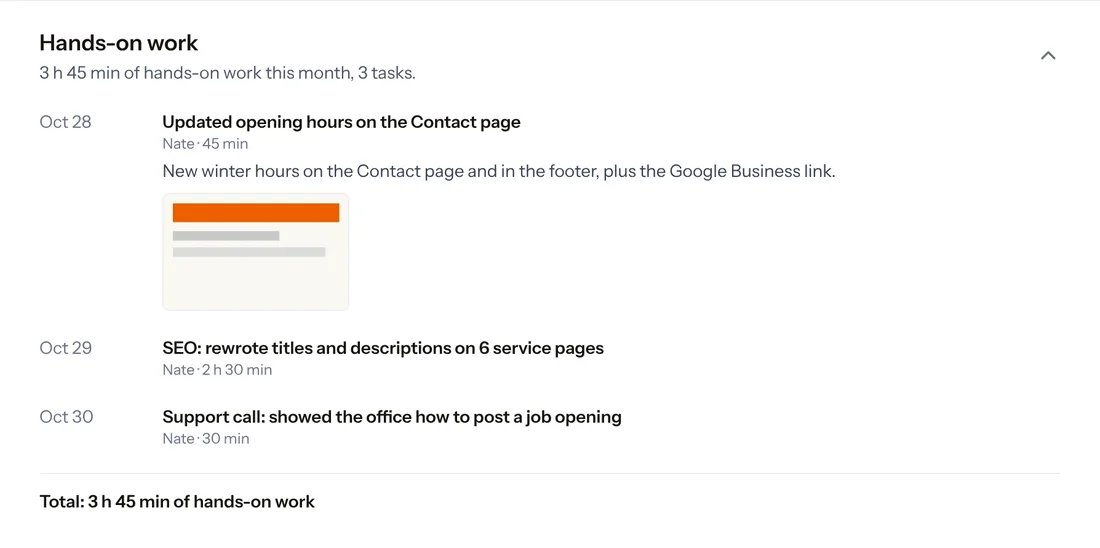
When the report includes the Work log section, entries in the report’s dates appear in their own Hands-on work section: each with its date, who did it, the time spent, the details and the screenshots, plus the total (“3 h 45 min of hands-on work this month”). The total also goes in the highlights at the top. Scheduled reports sent by a rule include them too.
Entries with Show on client reports unticked never appear in reports or the client portal. Site notes stay private as always; they’re separate from work entries.
Change or delete an entry
Each entry shows in the site’s log as “Work logged by …”. Click Edit or Delete under it. The person who logged it and the account owner can do this. Changes show in reports made after the change; reports you already made stay as they were.
Rules, webhooks and the API
- Rules can start when work is logged: pick Someone logs hands-on work on a site under When something happens.
- Webhooks: the
work.loggedevent. See Webhooks. - API:
POST /sites/{id}/worklogs work. See Sites in the API.
Thanks. If something was missing, tell us what.