
How rules work
Rules tell the crew what to do on their own: update on a schedule, react when something happens, and only come get you when it matters.
Updated Oct 11, 2026
A rule is a standing instruction to the crew. “Every Tuesday at 2 AM, back up and apply minor plugin updates on all my sites, and only email me if something goes wrong.” Once it’s switched on, it runs by itself, writes everything it does to the site log, and tells you as much or as little as you want.
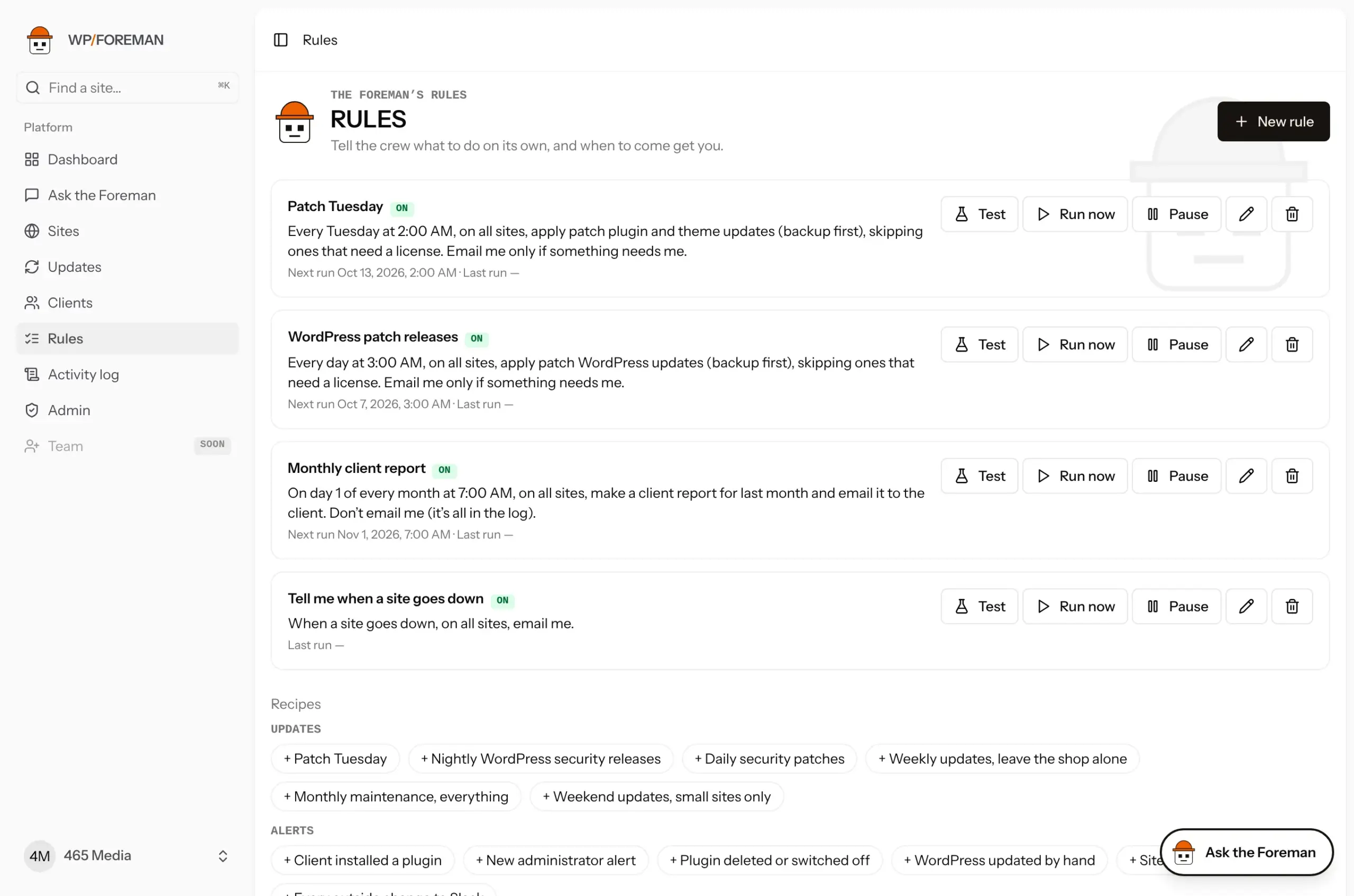
Find them under Rules in the main menu.
Every rule has five parts
The rule editor reads top to bottom like a sentence, and shows that sentence as you build it so you can check it says what you mean.
| Part | Answers | Example |
|---|---|---|
| When | What starts the rule: a schedule, or something happening on a site. | Every Tuesday at 02:00. When a backup fails 2 times in a row. |
| Where | Which sites it covers. | All sites. Acme Plumbing’s sites. Three chosen sites. |
| Then | What the crew does. | Back up. Update plugins. Email me. Send a webhook. |
| Only if | Limits on updates, and a time window. | Patch updates only. Never update WooCommerce. Only between 01:00 and 05:00. |
| Tell me | When to email you about it. | Only if something needs me. |
Every option is explained in Rules reference.
Make your first rule
- Open Rules and click a recipe (for example Patch Tuesday), or New rule to start from scratch.
- Give it a name you’ll recognise in the log and emails.
- Work down the editor: When, Where, Then, Only if, Tell me. Read the sentence at the bottom.
- Click Save rule. The rule is on straight away.
- Click Test on the rule to see exactly what it would do on each site right now, without changing anything.
Not sure where to start? Rule recipes has worked examples for the most common jobs, with the settings for each.
Scheduled rules
A scheduled rule runs every day, every week on a chosen day, every month on a chosen day (1 to 28), or every quarter on a chosen day (January, April, July and October), at the time you pick. The time is in your timezone (set it in Settings), so 02:00 means 2 AM where you are, and it moves with daylight saving.
The rule list shows when each rule runs next. WP Foreman checks for due rules every minute.
Event rules
An event rule runs when something happens on a site, for example a backup failing, an update failing, a site disconnecting, or a client installing a plugin in wp-admin. It runs only on the site where it happened, within a minute or so.
Event rules are what make while you were away work: the crew notices, acts, and tells you, instead of you finding out from the client.
What a run looks like
Each time a rule runs, the crew works through its sites one at a time:
- It checks whether it can work on the site now. If not (the site isn’t connected, it’s outside the time window, or a backup, restore or update is already running), the site is skipped and the reason is written down. See Safety, history and pausing.
- If the rule updates things, it works out which updates match your Only if limits.
- It backs up, then applies those updates. Updates from a rule always back up first. There’s no way to switch that off.
- It writes what it did to the site’s log, marked Rule: (name).
When every site is done, the run is saved to the rule’s history, and you get an email or webhook if you asked for one.
Switch a rule off, change or delete it
- Pause stops it running without losing its settings. Switch on starts it again.
- The pencil changes any part. Scheduled rules work out their next run again when you save.
- Run now runs it straight away on all its sites, as if its time had come. The rule has to be on.
- The bin deletes the rule. What it already did stays in the site logs.
Rules never trigger other rules or themselves. A plugin a rule installs, or a backup a rule starts that later fails, won’t set off an event rule. This stops two rules bouncing off each other forever.
Thanks. If something was missing, tell us what.