
Site overview, notes and settings
Each site's health at a glance, private notes the Foreman respects, changing a site's name, address or client, and switching features off for one site.
Updated Oct 11, 2026
At a glance
A site’s Overview shows health tiles above the versions and backup:
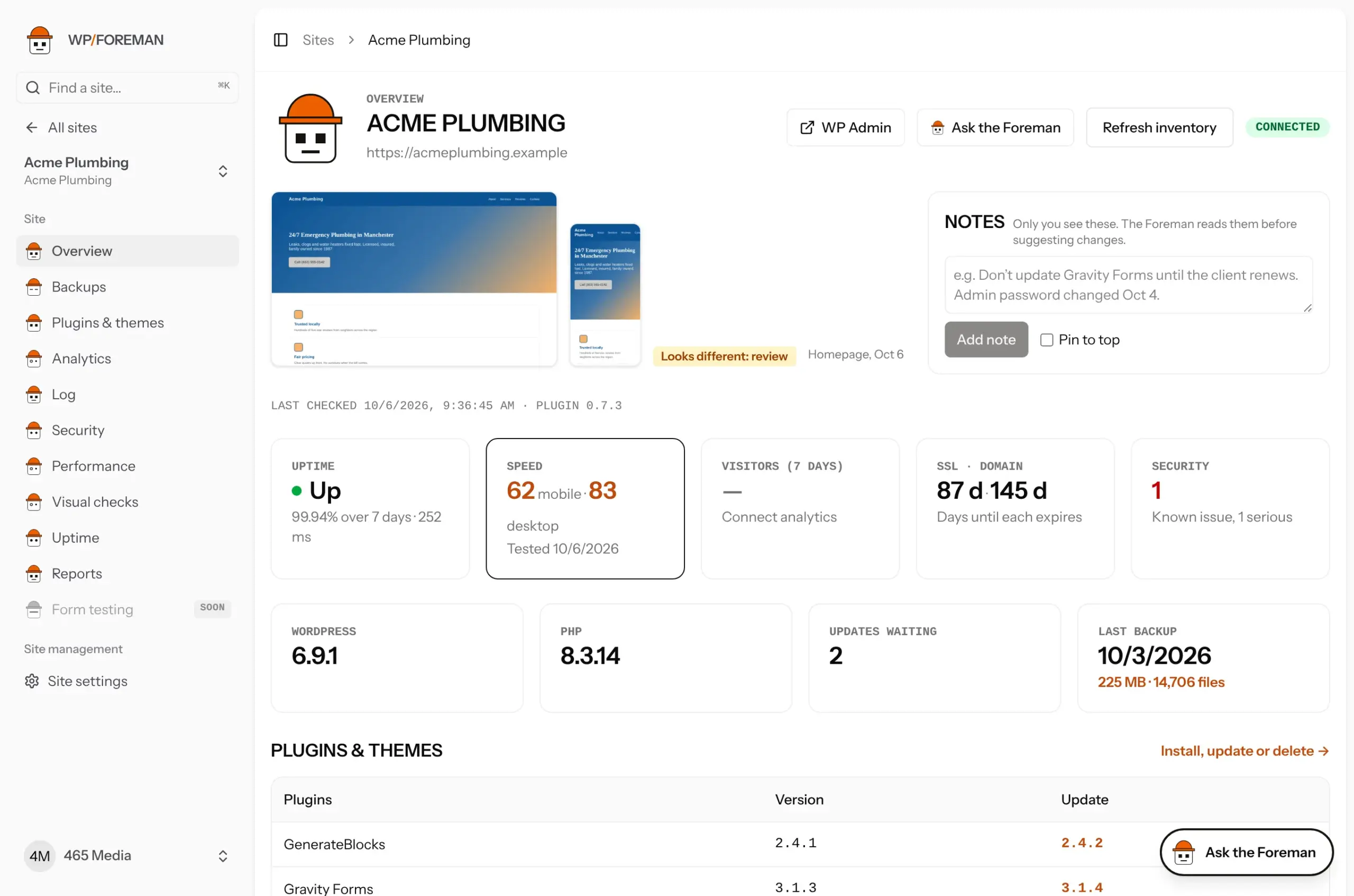
| Tile | Shows | Opens |
|---|---|---|
| Uptime | Up or down right now, uptime over the last 7 days, last response time. | Uptime |
| Speed | Latest PageSpeed score on mobile and desktop. | Performance |
| Visitors (7 days) | Visitors from your analytics, and the change from the week before. Refreshed daily and whenever you open the Analytics page on 7 days. | Analytics |
| SSL · domain | Days until the certificate and the domain registration expire. Orange under 14 days, red under 3. | Uptime |
| Security | Known vulnerabilities in the site’s plugins, themes and WordPress, and how many are serious. | Security |
The same numbers are columns on the Sites list (Uptime, Speed, Visitors 7d), and your Dashboard sums them up in the crew stand-up: sites down right now, average uptime, the middle mobile speed score and any sites under 50, total visitors, and anything expiring in the next 14 days. See Finding your way around.
Notes
At the top of a site’s Overview (next to the homepage screenshot, when there is one), write anything you want to remember about the site: “Admin password changed Oct 4”, “Client handles their own SEO plugin”, “Don’t update Gravity Forms until they renew”.
- Notes are private to your account. Clients never see them.
- Pin a note to keep it first in the list, highlighted in orange.
- Edit or delete a note with the icons under it.
- The Foreman reads them. Before it suggests updates or changes it checks the site’s notes, follows them, and tells you if your request goes against one.
Notes don’t stop rules or bulk updates. To make sure a plugin is never updated automatically, add it to a rule’s Never update list (see Rules reference), and skip it on the Updates page.
Notes aren’t encrypted separately like backups are. Write “password changed” rather than the password itself, and keep passwords in a password manager.
Site settings
Choose Site settings under Site management in a site’s menu to change:
- Name: how the site appears everywhere in WP Foreman, emails and reports.
- Address: where uptime and speed checks look and where links point. It doesn’t change the WordPress site itself.
- Client: pick one, choose No client, or + New client… to create one on the spot.
- Sign in as: which WordPress administrator the WP Admin button uses. See Choose the account.
Switch features off for one site
Everything is on for every site by default. If a site doesn’t need something (say, the client has their own uptime monitoring), go to Site settings › Features and flip its switch off. It takes effect right away.
| Feature | When it’s off |
|---|---|
| Uptime | No more checks or down alerts. SSL and domain expiry dates stay on the overview. |
| Speed tests | No more daily Google PageSpeed tests. |
| Visual checks | No more weekly screenshots, or screenshots before and after updates. |
| Analytics | Traffic stops showing on the dashboard and in reports. Your analytics connection is kept. |
| Security | No more daily vulnerability checks or security alerts for that site. |
| Backups | Scheduled backups stop. Existing backups are kept until they expire, and you can still run one by hand or restore. You’ll be asked to confirm. |
A feature that’s off drops out of the site’s menu, its overview tiles and its client reports. Opening its page takes you back to Site settings. Turning it back on picks up where it left off; history from before is still there. Each change is recorded in the site’s log.
Thanks. If something was missing, tell us what.