
Client reports
Make a plain-English report for any site and any dates, with the site's logo, and send your client a private link or a PDF.
Updated Oct 11, 2026
A report shows a client what you did for their site and how it’s doing, in words they understand. No plugin lists to decode, and no WP Foreman branding: the report shows the site’s logo and your name.
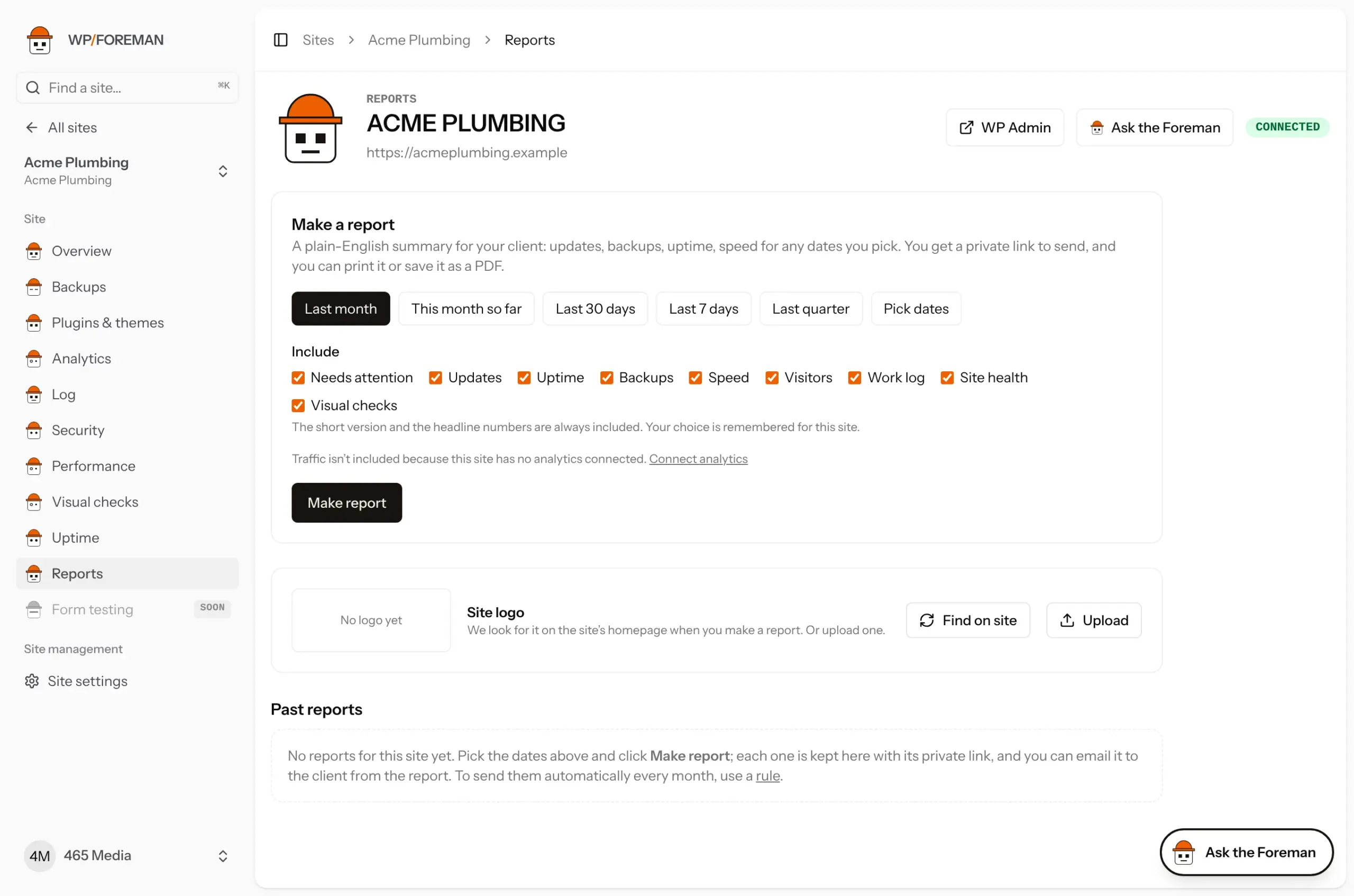
Make one
- Open the site and choose Reports.
- Pick the dates: Last month, This month so far, Last 30 days, Last 7 days, Last quarter, or Pick dates for any range up to about a year.
- Tick the sections to include (see below). Your choice is remembered for the site.
- Click Make report. It takes a few seconds and opens the finished report in a new tab.
From the report: Email to client, Copy client link to send it yourself, Print or save PDF to attach it to an email or invoice, or Delete it.
Email it to your client
- Open the report and click Email to client.
- Enter one or more addresses (up to 10, separated by commas) and, if you like, a short message.
- Leave Remember these addresses ticked to fill them in next time for this client.
- Click Send.
The email comes from your agency name, shows the site’s logo, your message, the anniversary (if it’s that month), the short version, anything that needs attention and a View the full report button in your accent color. When the client’s portal is on, it ends with a link to it. Replies go to your reply-to address. The report then shows Emailed with the date and addresses, and the send is recorded in the site’s log.
What’s in it
The report reads top to bottom, from a quick look to the full detail:
- Cover: a band in your accent color with your logo (or name), the dates, the site’s name, This month in short (a short paragraph written by AI from the report’s own numbers, or three to five plain points if it can’t be written) and the homepage on a computer and a phone.
- Anniversary, in the month a care plan with Client since renews: a cake with one candle per year and a thank-you from your agency. See Celebrate a client’s anniversary.
- Needs attention, when something does.
- This month at a glance: one card each for visitors (with a small trend line), speed (phone and computer gauges), pages checked (a strip of page screenshots, with changed pages outlined), updates (plugin icons), backups, time online (a bar per day) and security (known issues found and fixed). Each card’s link opens its details below.
- The details: a section for each area you ticked. Each one shows a one-line summary and opens with a click, so clients can dig in only where they care to. Open all opens every section, and printing or saving a PDF always includes everything.
- Coming up: updates waiting to be installed, an SSL certificate or domain renewing in the next 60 days, renewals you chose to show the client, and Google’s biggest suggested speed fix. Left out when there’s nothing.
- Every task: the full work log and the site’s vital signs, folded away at the end.
- A sign-off with your agency name, logo and email.
| Section | Shows |
|---|---|
| Needs attention | Updates still waiting, updates that were held back and why, failed backups, a low mobile speed score with Google’s top fix, an SSL certificate or domain expiring within 30 days, known security issues still open, the site being down when the report was made, or plugins that are no longer maintained (pulled from wordpress.org, or no update in two years or more) and should be replaced. Left out when there’s nothing to say. |
| Updates | Every plugin, theme and WordPress update WP Foreman installed, with its icon, versions and dates, and any that were held back. |
| Uptime | Shown as Online. Percent online, a bar for each day (green, or orange/red on days with downtime), daily response time, and each outage with how long it lasted. See Uptime. |
| Backups | How many were taken, the most recent, and a square for each day showing it was backed up. |
| Speed | Phone and computer PageSpeed scores as gauges, frames of the page loading on a phone (and, when the phone score moved 5 points or more, the start of the period next to the end), each measurement on a green-amber-red scale, with a chart of every test, and Google’s top three suggestions. |
| Visitors | A daily visitors chart with the period before drawn faintly behind it; how people found the site (search engines, typed in or bookmarked, social media, other websites, email, ads); phone, computer and tablet shares; new and returning visitors (Google Analytics only); the top cities; visitors, pages viewed, visits, people who left after one page and time on site, each compared with the same length of time before; top pages and sources. Parts your analytics tool can’t provide are left out. Needs analytics connected. |
| Work log | Under Every task. Everything that happened on the site in date order: updates, installs, activations and removals (including ones made in WordPress, with who made them), new administrators, restores, failed backups, outages and speed drops. Routine backups and sign-ins are left out. |
| Visual checks | Shown as Every page, checked after every update: the latest screenshot of every watched page marked Looks right or Changed, a before and after for each change spotted (and whether you checked it was expected), and a timeline of each round of checks with what it followed (for example “After updating WooCommerce”). See Visual checks. |
| Site health | Under Every task, as Website health. WordPress and PHP versions, number of plugins, SSL certificate and domain renewal dates. |
Sections you don’t tick are left out completely, including from the client link and the at-a-glance cards. Reports made before October 7, 2026 show in the new layout too, without the parts they don’t have data for (such as the page gallery). Hover the charts to see each day’s numbers.
The AI paragraph is written once, when the report is made, using only the numbers in the report. It’s written for your client, in your voice: anything still to do is described as something you’ll take care of (“2 updates are ready, and we’ll install them soon”), never as something they need to approve, and it never names WP Foreman. It uses your own Anthropic key if you’ve added one in Settings › AI, otherwise WP Foreman’s, and doesn’t count against your Ask the Foreman allowance. If it can’t be written, the report simply starts with the points.
A report is a snapshot. Once made, it never changes, even if you rename the site or data comes in later. Make a new one to get fresh numbers.
Your agency branding
In Settings › Branding set your agency name, logo, accent color and reply-to email. Reports show your logo (or name) at the top of the cover band, which is in your accent color, and your email in the sign-off at the bottom (your reply-to email, or your profile email if you haven’t set one). Report emails use all four. Each report keeps the branding it was made with, so after changing your color or logo, make a new report to see it. If you haven’t set an accent color, the client’s brand color (from Clients) is used instead.
Which address report emails come from
Choose in Settings › Branding › How report emails are sent:
| Option | Clients see | Setup |
|---|---|---|
| WP Foreman (default) | Your agency name, from WP Foreman’s sending address. Replies go to your reply-to email. | None. |
| Your domain | Your agency name from an address on your domain, like [email protected]. | Add the DNS records shown (usually 3) at your DNS provider, then click Check. The address doesn’t need a mailbox, and the records don’t change how your normal email works. |
| Your mail server | Your agency name from your own address, sent through your own mail server (SMTP). | Enter the server, port, security, username and password. We send you a test email; when it arrives, you’re set. |
- Google Workspace / Gmail: server smtp.gmail.com, port 587, STARTTLS, your full address as the username and an app password (needs 2-step verification on the account).
- Microsoft 365: server smtp.office365.com, port 587, STARTTLS. Your Microsoft 365 admin may need to allow SMTP sign-in for the mailbox.
- SMTP passwords are stored encrypted. If sending fails later (for example after a password change), the report shows the error and the setting shows Not working.
On Cloudflare, set the domain records to DNS only (grey cloud). DNS changes can take a few minutes, occasionally a few hours, before Check shows Working.
The site’s logo
The first time you make a report, the Reporter looks for the logo on the site’s homepage: the WordPress custom logo, then a logo image or SVG in the header, then the site icon. You’ll see it under Site logo on the Reports page.
- Find on site looks again, for example after a rebrand.
- Upload uses your own file instead (PNG, JPG, WebP, GIF or SVG, up to 400 KB). A logo with a transparent or white background looks best.
Reports already made keep the logo they were made with.
Your own report domain
Report links can come from your own domain, like reports.youragency.com, instead of app.wpforeman.com. Only the account owner can set this up.
- Go to Settings › Branding › Report domain, type the subdomain you want to use and click Add domain. Use a subdomain you don’t use for anything else; the main domain,
www.andmail.aren’t allowed, so your website and email are never affected. - WP Foreman shows two DNS records: a CNAME pointing your subdomain to
customers.wpforeman.com, and a TXT record that proves you own it. Add both where your domain’s DNS is managed. On Cloudflare, set the CNAME to DNS only (grey cloud). - Click Check now, or just wait: WP Foreman checks every few minutes for a week. When the domain shows Live, the security certificate has been issued; it renews by itself.
Once it’s live, Copy client link, Open and report emails all use your domain, including the logos inside the email. Links you already sent from app.wpforeman.com keep working. Your domain only shows your own reports; everything else on it returns “Not found”, so nobody can reach WP Foreman’s sign-in page through it. Remove the domain any time and new links go back to app.wpforeman.com.
The client link
- Anyone with the link can open the report. No sign-in needed.
- Links are long random codes, can’t be guessed, and are hidden from search engines.
- Clients get a Save as PDF button at the top. It opens every section and their browser’s print window, where they choose Save as PDF (or print it).
- Delete a report to turn its link off: use the bin next to it under Past reports (handy when you remake one and only want the good one kept), or Delete at the top of the report.
Send reports automatically
Use a rule with the action Make a client report: for example “On day 1 of every month, make last month’s report and email it to the client”. Start from the Reports recipes on the Rules page. See Rule recipes.
Coming next
A PDF attached to the email.
Ask the Foreman: “Which of my sites had outages last month?”
Thanks. If something was missing, tell us what.