
Getting started for beta testers
Welcome to the beta. What to set up first, what to expect, and how to tell us what you think.
Updated Oct 11, 2026
Thanks for helping test WP Foreman. During the beta you can connect up to 5 sites with every feature switched on, free. This page is the quick tour: what to set up first, what to try next, and how to send us feedback.
What “beta” means
- It’s real. Backups, updates, uptime checks and alerts all run for real on the sites you connect.
- Keep your current backups running alongside WP Foreman until you’re comfortable. Belt and braces.
- Things will change. We ship improvements most days (see the changelog). Now and then something will look different or break; tell us and we’ll fix it fast.
- It’s free during the beta. Your beta account stays free with up to 5 sites. Paid plans are live for anyone who wants more (see Plan & billing), but nothing is charged unless you choose to upgrade.
- Ask the Foreman has a monthly beta allowance; a bar under the chat box shows how much is left. Add your own Anthropic key in Settings › AI for unlimited use.
- Added the wrong site? Remove it in its Site settings to free the slot.
- Light mode only for now. Dark mode is coming back once every page is ready for it.
Your first 30 minutes
The first time you sign in, a one-minute tour shows you around; key pages have their own short tours too. Replay them any time with Take the tour in the menu under your name.
- Sign in with the link in your invite email, or with Google if your invite went to a Google address. See Signing in.
- Set your timezone in Settings › Profile, so schedules and reports use your clock. See Set your timezone.
- Add your first site on the Sites page, then install the WP Foreman plugin on it and paste the connection key. Takes about two minutes. See Add and connect a site (and Troubleshooting if it doesn’t connect).
- Run a backup now from the site’s Backups page, and check the schedule (daily by default). See Run a backup now and Backup schedule.
- Check your alerts in Settings › Notifications: the morning report (“While you were away”) and down/up emails are on by default. See While you were away and Uptime.
Then try these
- Updates: update a plugin from the site’s Plugins & themes page with a backup first, or several sites at once from Updates. See Safe updates.
- Rules: let the crew work while you’re away, for example “Patch Tuesday” or a monthly client report. Start from a recipe. See Rule recipes.
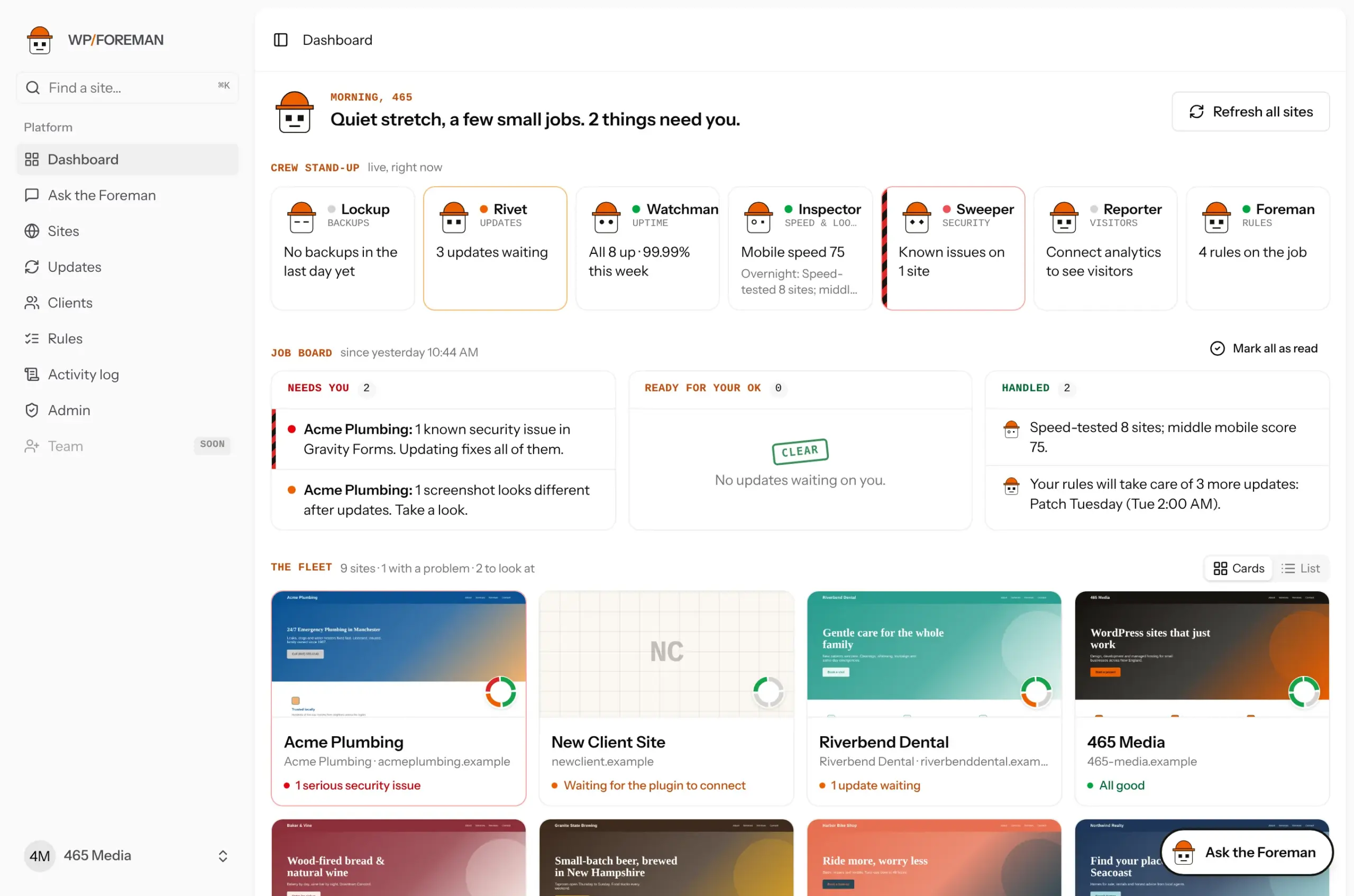
- Ask the Foreman: the chat in the bottom-right corner (⌘J / Ctrl+J). Ask “Which sites need attention?” or “Update Yoast on all my sites”; it asks before changing anything. See The Foreman.
- Clients and branding: add your clients (logo, colors, report emails) and your agency branding in Settings › Branding. See Clients.
- Client reports: make a report for any dates and send it from your own address. See Client reports.
- Analytics: connect Google Analytics, Plausible or Umami to see visitors on each site and in reports. See Connect analytics.
- Visual checks: each site’s key pages are screenshotted before and after updates and weekly. Add the pages that matter on the site’s Visual checks page. See Visual checks.
Send us feedback
Click Send feedback at the bottom of the menu, on any page. Pick what it is (something’s broken, an idea, a question, or something you like), write a sentence or two, and send. It comes straight to us with the page you were on, so you don’t need to explain where you were. We read every one and will email you if we have a question.
The most useful feedback is honest: what confused you, what you expected to happen, and what you’d pay for. Small things count too.
Need a hand?
Everything is in these help docs; the search box finds most answers. Still stuck? Click Support at the bottom of the menu to send the WP Foreman team a request. See Get help from the WP Foreman team.
Thanks. If something was missing, tell us what.