
Add and connect a site
Add the site in WP Foreman, install the plugin, paste the key. About two minutes.
Updated Oct 7, 2026
Connecting a site takes two parts: add it in WP Foreman, then install the WP Foreman plugin on the site and paste a one-time key.
1. Add the site
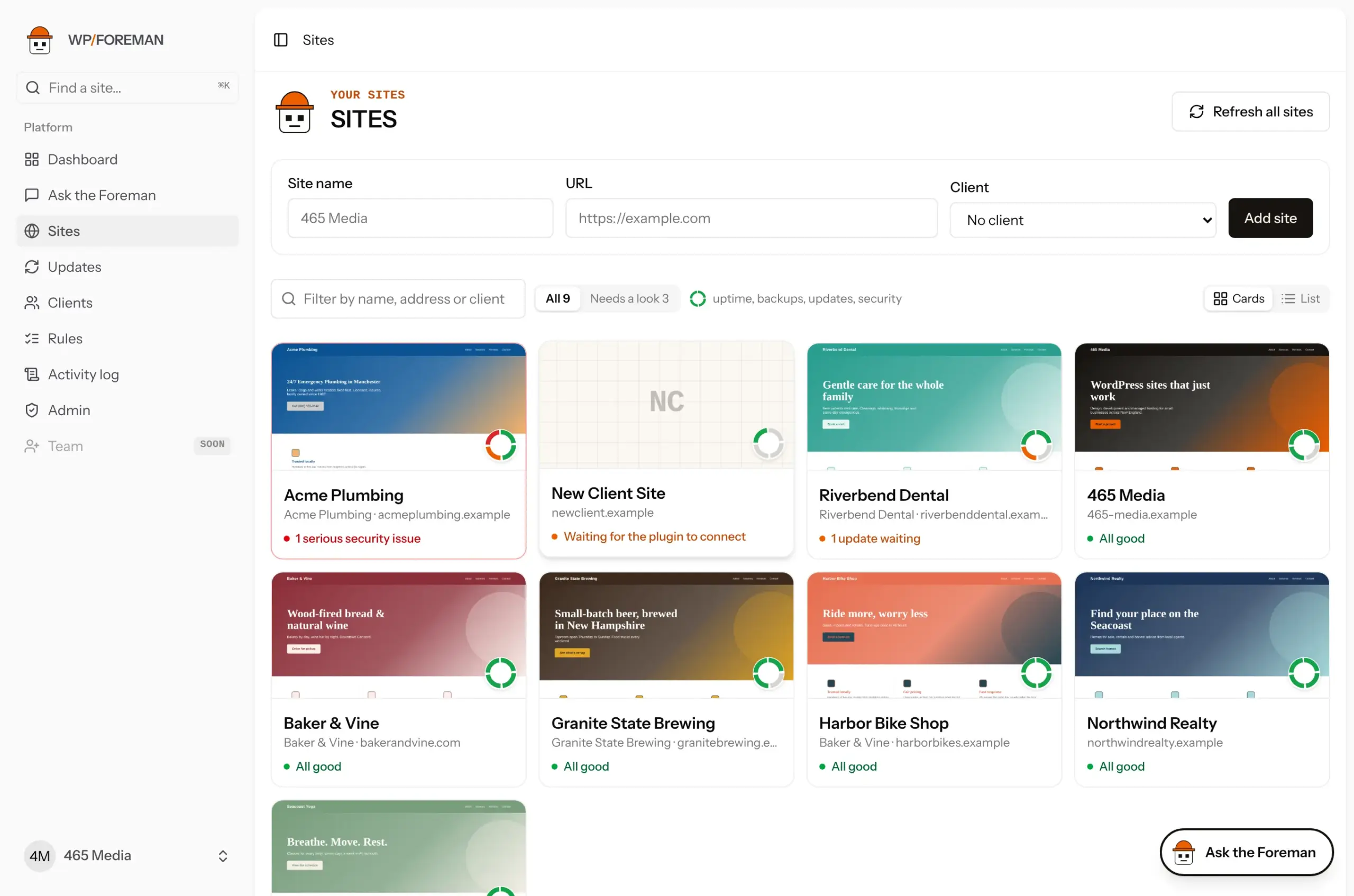
- Go to Sites.
- Enter a name and the site’s address (for example
https://example.com). Pick a client if you use them. - Click Add site.
2. Copy the connection key
WP Foreman opens the new site and shows a connection key. Copy it now: it’s shown once and expires in 24 hours.
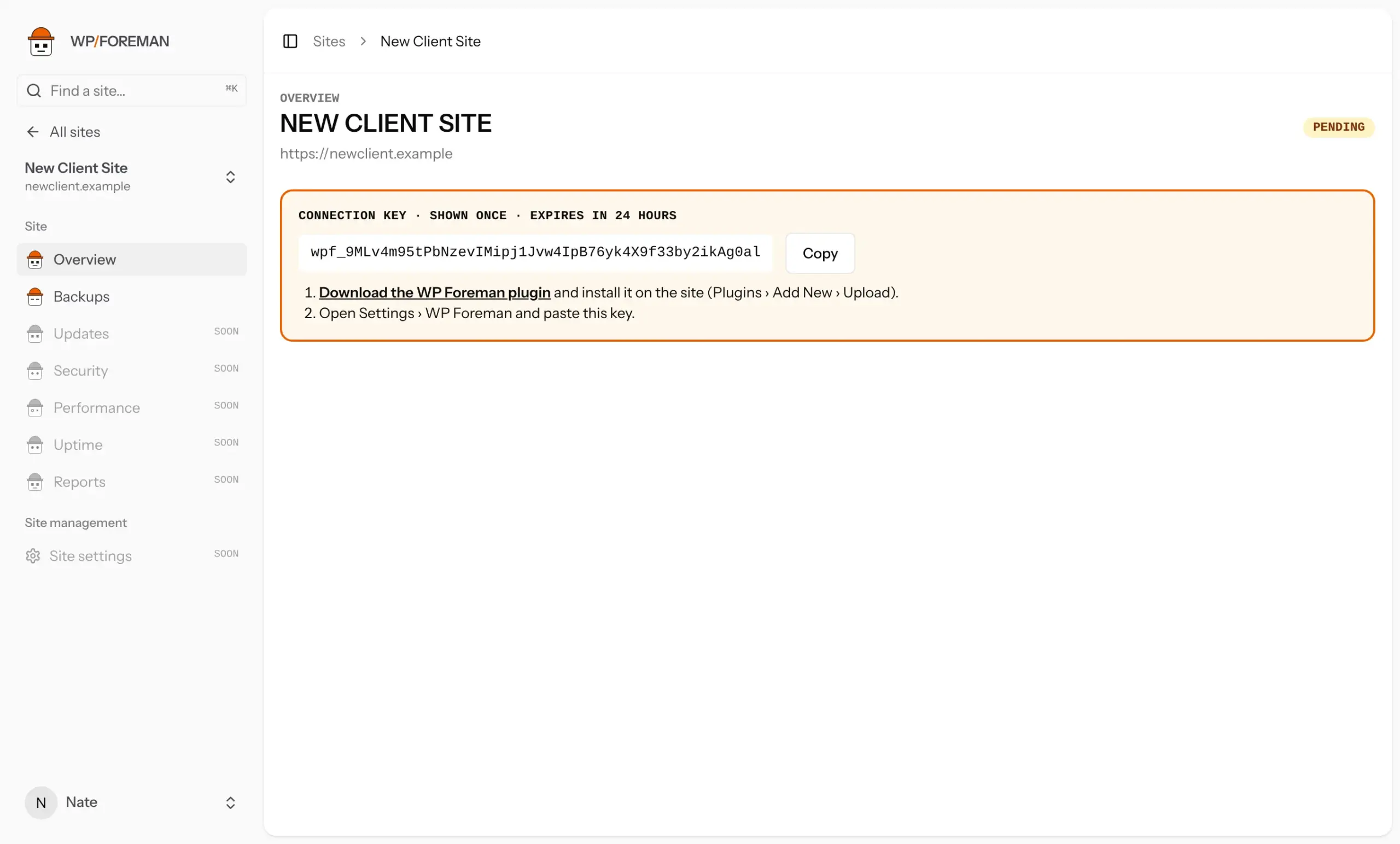
Lost it? Open the site and click New connection key. Any older key stops working.
3. Install the plugin and paste the key
- Click Download the WP Foreman plugin to get
wpforeman_v<version>.zip(for examplewpforeman_v0.7.3.zip). - In the site’s WordPress admin, go to Plugins › Add New › Upload Plugin, choose the zip and activate it.
- Go to Settings › WP Foreman, paste the key and connect.
Back in WP Foreman, the site switches to Connected and its plugins, themes and versions appear within a few seconds.
The key only works for the address you entered. If the site lives at www.example.com and you entered example.com, that’s fine, but a staging address or a different domain will be refused. Fix the address and get a new key.
What happens next
- The plugins, themes and versions list refreshes every 30 minutes, or when you click Refresh inventory.
- Daily backups are switched on automatically, around 1am in your timezone. Change that in Backups › Settings.
Thanks. If something was missing, tell us what.