
Restore a backup
Put the whole site, just the files, just the database, or a single file back the way it was. A safety backup runs first.
Updated Oct 11, 2026
You can restore any backup that’s still kept, which goes back at least 90 days (see how long backups are kept). Lockup always takes a safety backup of the site as it is right now before changing anything, so every restore can be undone.
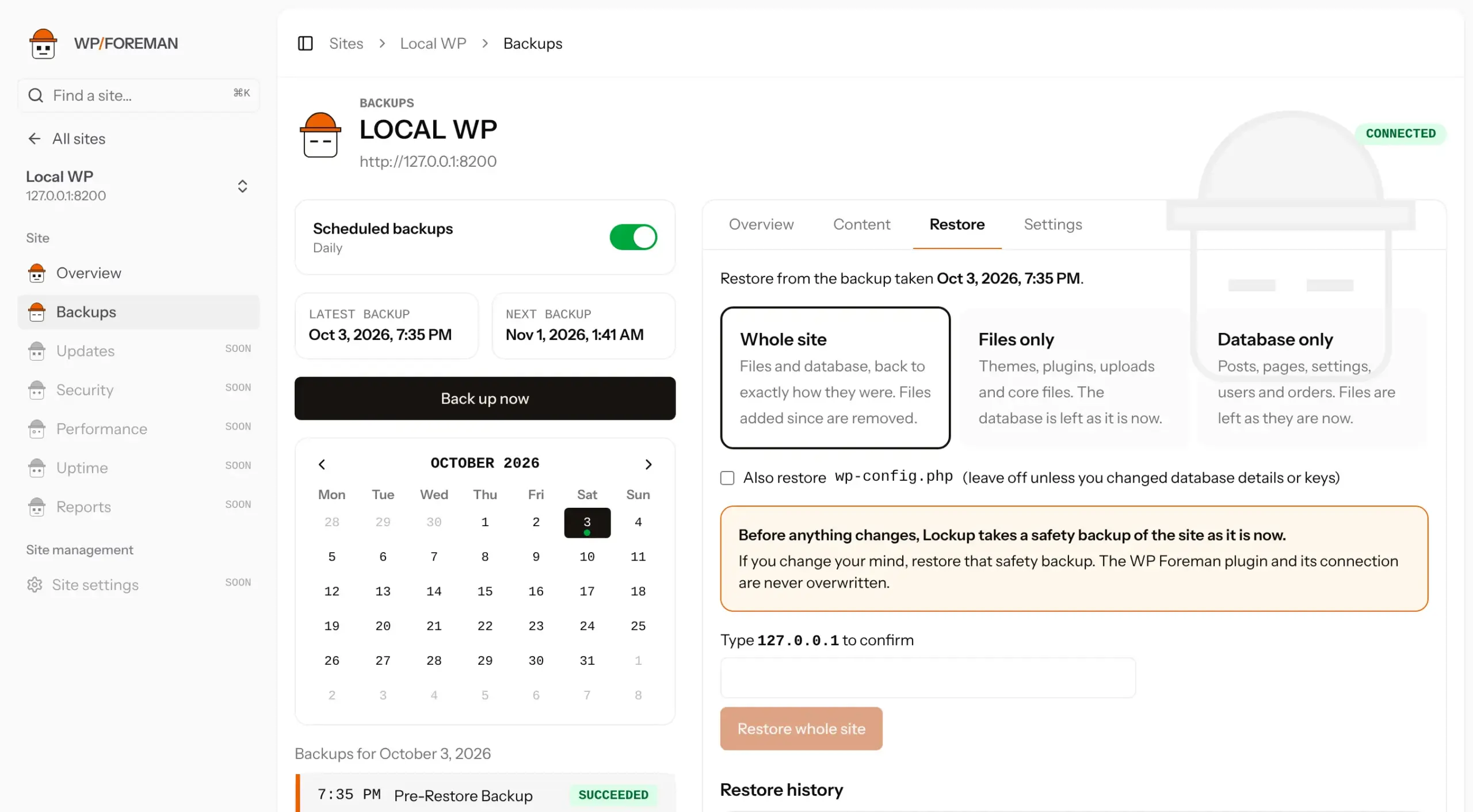
Restore the whole site, files or database
- Open the site’s Backups page and pick the day and backup you want to go back to.
- Click the Restore tab.
- Choose what to restore (see below).
- Type the site’s domain to confirm and click the restore button (for example Restore whole site).
| Option | What changes |
|---|---|
| Whole site | Files and database go back to exactly how they were. Files added since that backup are removed. |
| Files only | Themes, plugins, uploads and core files go back. Files added since that backup are removed. The database stays as it is now. |
| Database only | Posts, pages, settings, users, orders and form entries go back. Files stay as they are now. |
The Restore tab shows each stage as it runs: safety backup, unpacking, restoring files, restoring the database. You’ll get an email when it finishes. Most small sites take a minute or two.
Restore one file or folder
- Pick the backup and open the Content tab.
- Find the file or folder under Site files and click Restore next to it.
- Type the domain to confirm.
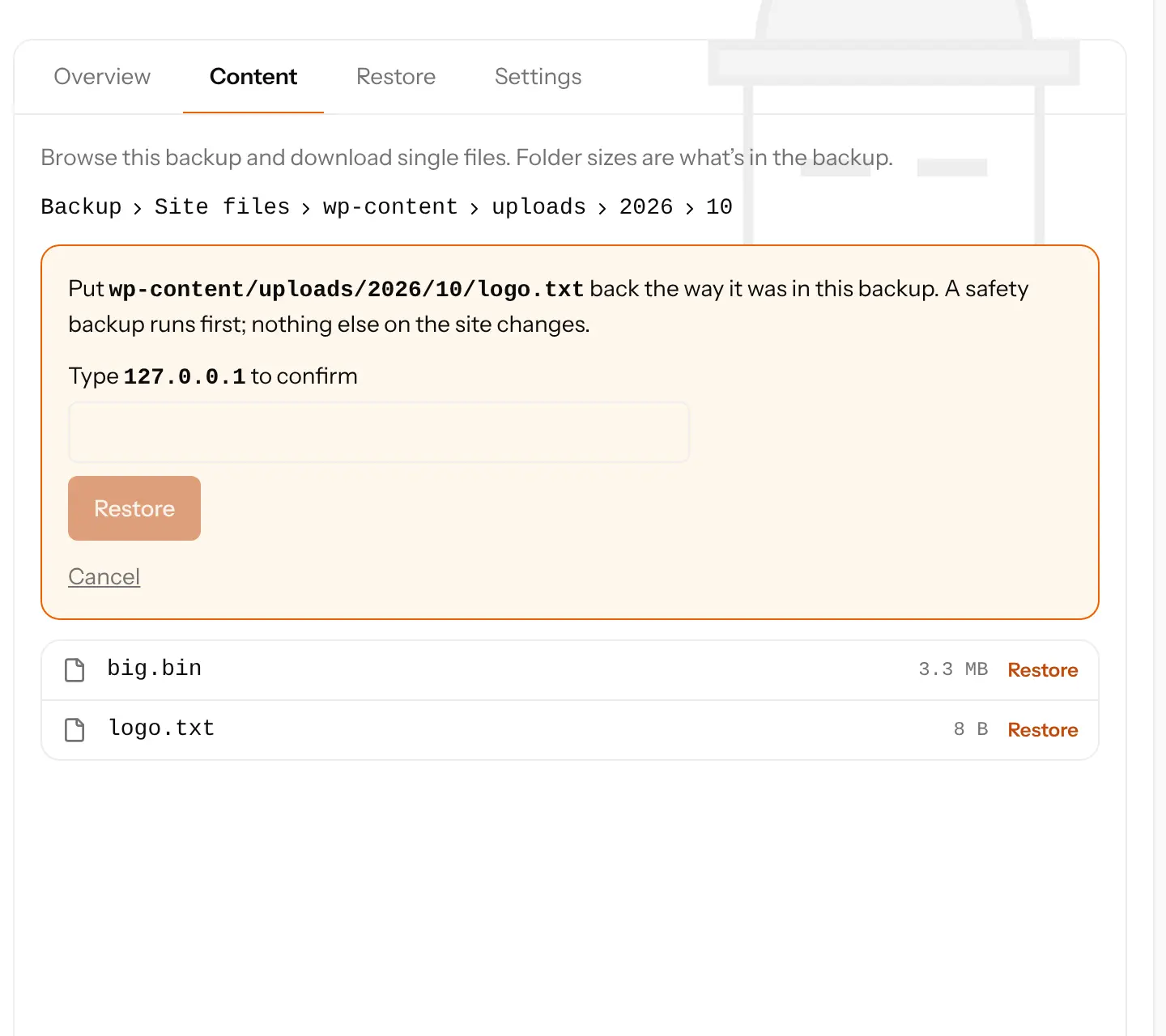
Restoring a file or folder only writes what’s in the backup. It never deletes anything.
What a restore never touches
- The WP Foreman plugin and its connection. The site stays connected, even after a database restore.
wp-config.php, unless you tick Also restore wp-config.php. Leave it off unless you changed database details or security keys since the backup.- Folders you excluded from backups, and files the site couldn’t read at backup time. They’re left as they are.
- Database tables that weren’t in the backup, for example ones a plugin created since. They’re left in place.
How the database is restored safely
Your tables are loaded into temporary copies first. Only when every table has loaded does WP Foreman swap them all in at once. If anything goes wrong partway, the temporary copies are thrown away and your live database is untouched.
Copy to another site
The Restore tab also lets you copy a backup onto a different site, for staging or moving hosts. See Clone or migrate a site.
Undo a restore
Find the Pre-restore backup in the list (taken just before the restore started) and restore that.
Restores need WP Foreman plugin 0.3.0 or newer on the site. Users who were logged in may need to log in again after a database restore.
Thanks. If something was missing, tell us what.